Animate with In, Out, and pan and zoom
Make clips, text and shapes come in and go out, and move or zoom across a picture while it shows.
Anything on the timeline can come in and go out by itself, and a video clip or photo can also move or zoom while it shows. Both are in the Animate tab of a clip's settings, and at the bottom of the settings for text and shapes.
In and Out
Select a clip, text or shape. In Animate, In is how it appears and Out is how it leaves.
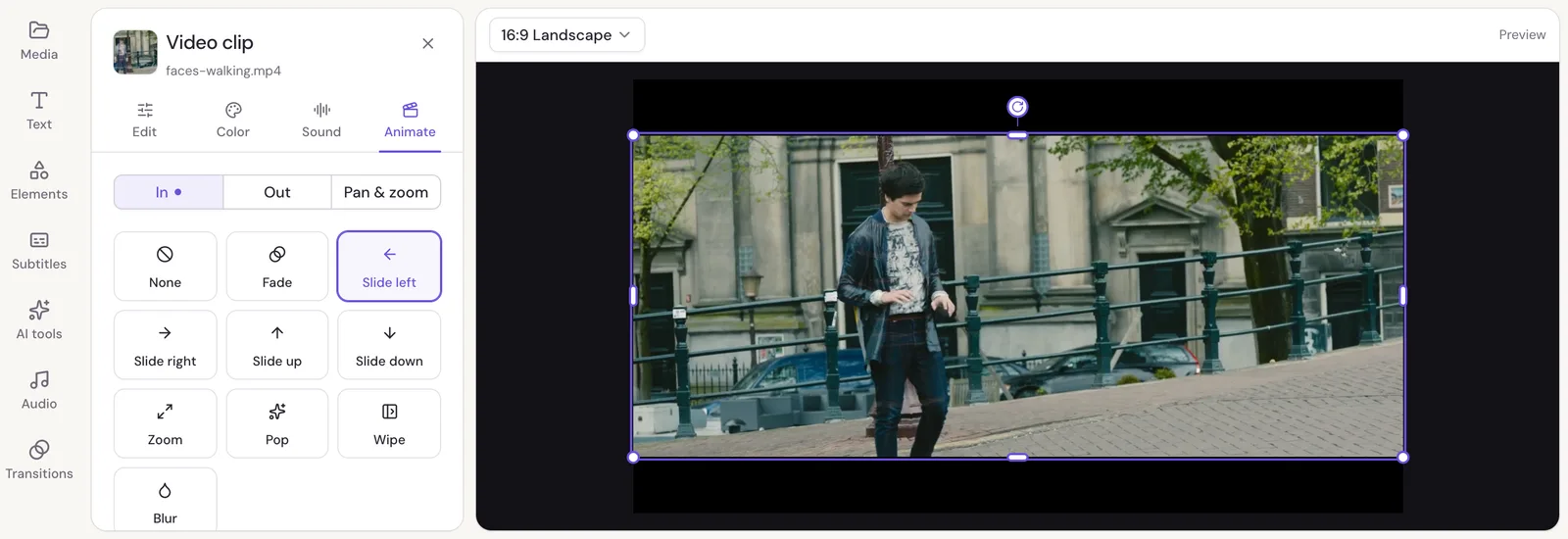
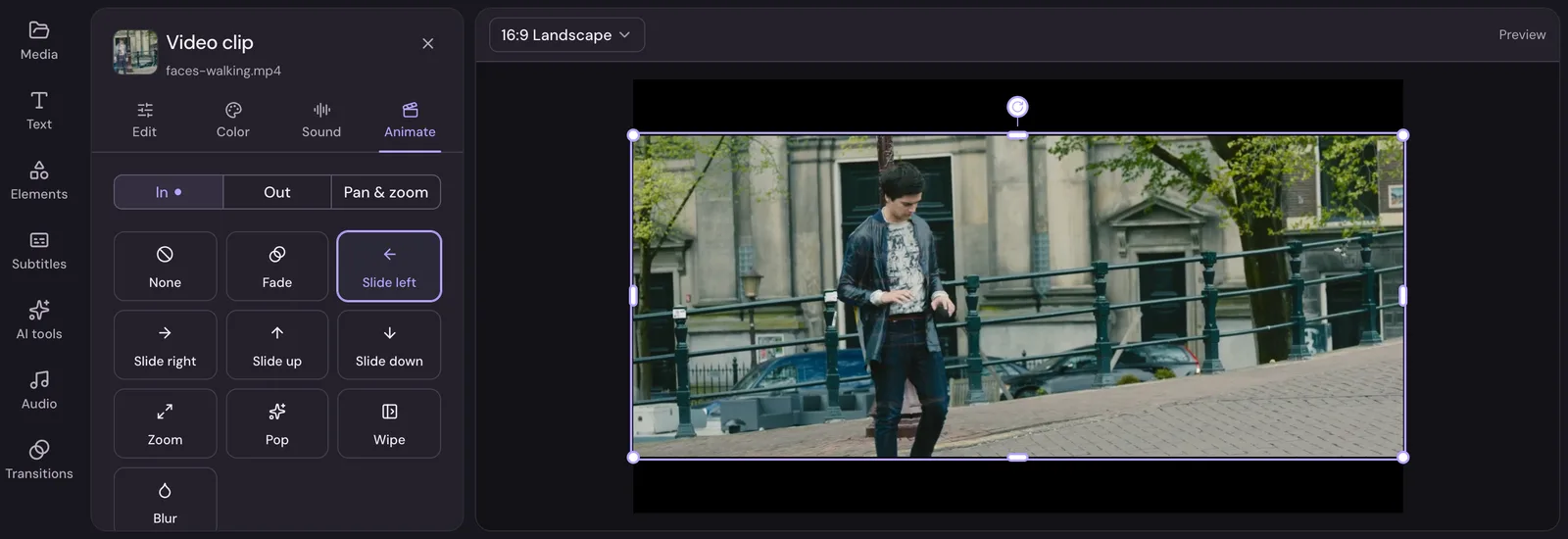
Pick None, Fade, Slide left, Slide right, Slide up, Slide down, Zoom, Pop, Wipe or Blur. Point at a tile to see it move. Length sets how long it takes, from 0.1 to 2 seconds.
The time it takes shows as shading on the item's end on the timeline. A small dot next to In or Out means one is set.
Where a clip already comes in or goes out with a transition, the tab says so, and you change it with the diamond on the timeline. See Add transitions.
Pan and zoom
Pan & zoom moves across a video or photo, or zooms in on part of it, while it shows. The clip's box on the frame stays where it is; the picture moves inside it.
Pick one of two ways to start:
- Slow move: a slow push in over the whole clip, like a documentary over a photo.
- Zoom in and hold: a quick zoom in at the playhead that stays zoomed in. It's the usual way to point at part of a screen recording.
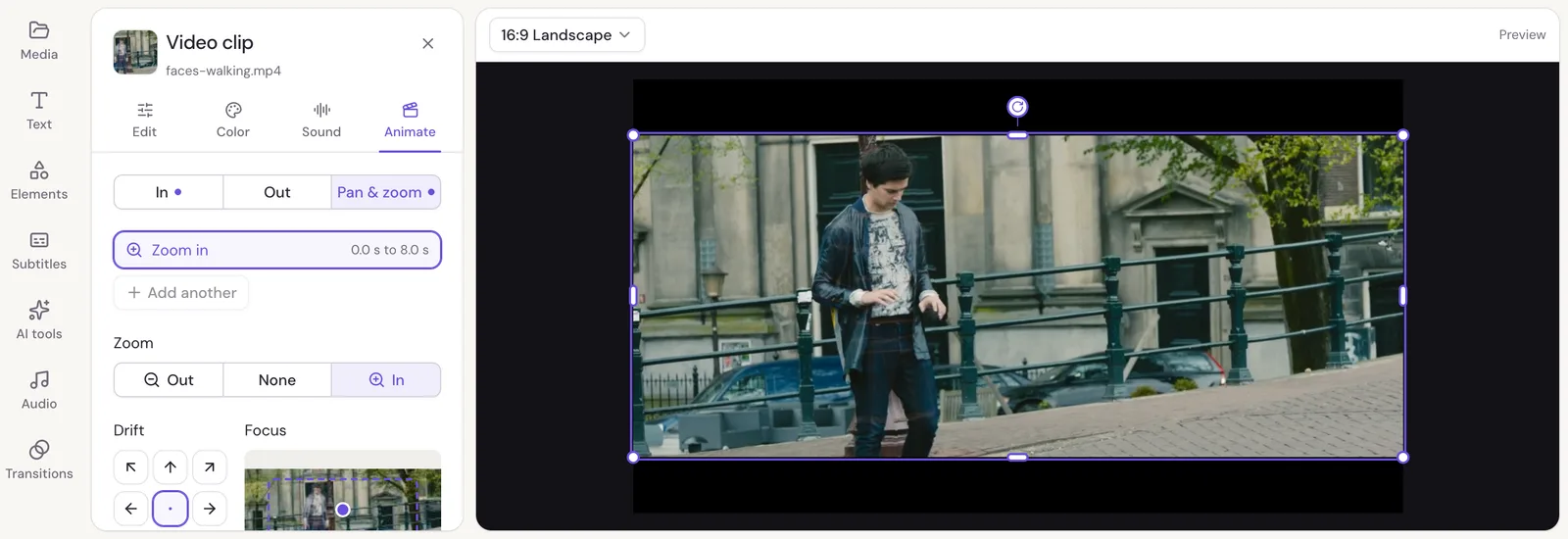
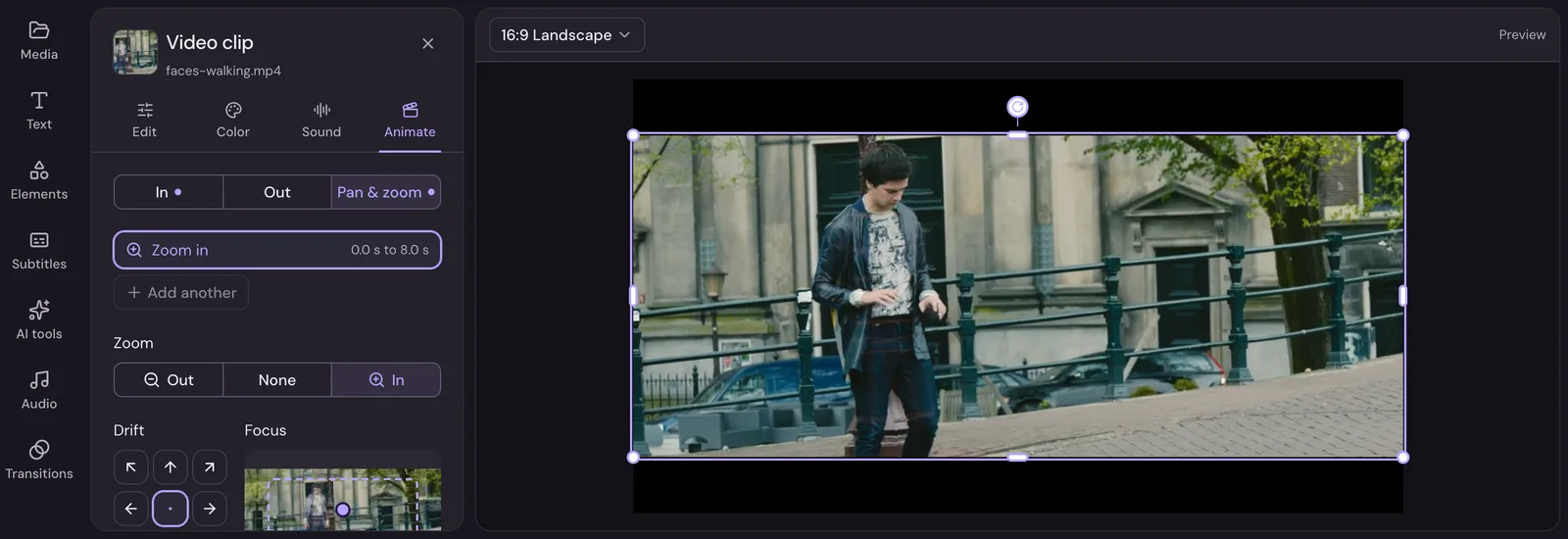
Then shape the move:
- Zoom: In, Out or None.
- Drift: which way it moves, in eight directions, or straight in or out.
- Focus: drag the dot to where it zooms toward.
- How far: Shallow, Medium or Deep.
- Pace: Steady keeps the same speed all the way, Smooth eases in and out, and Cut jumps there with no movement.
Each move shows as a block in a lane under its clip on the timeline. Drag the block's ends to change when it starts and stops, or drag its middle to slide it. A Cut shows as a mark instead. A move stays over the same part of the footage when you trim the clip.
More than one move
Add another puts a second move after the first, or at the playhead. Use it to zoom in on one part of a screen recording, then on another, then back out. The list at the top shows the clip's moves in order; click one to change it, and Remove to take it out.
Set it exactly
Adjust exactly on the preview shows where the move starts and where it ends as two boxes on the preview. Drag and resize them to frame each one exactly. Swap turns the move around, and Done keeps it.