Change a clip
Change a clip's speed, crop, turn or mirror it, freeze a frame, play it backwards, and set its color.
Click a clip on the timeline to see its settings in the panel. A video clip's settings are in four tabs: Edit, Color, Sound (when the clip has sound) and Animate. Photos and GIFs have the same settings, apart from speed and sound.
Speed
Under Speed, pick 0.5×, 1×, 1.5× or 2×, or drag Custom speed anywhere from 0.25× to 4×. At 2× a clip plays twice as fast and lasts half as long on the timeline. Its sound keeps the same pitch.
Turn, mirror and crop
- Turn left and Turn right turn the clip a quarter turn.
- Mirror left to right and Mirror top to bottom flip it.
- Angle turns it by any amount, from −180° to 180°. You can also drag the round handle above a clip on the preview.
Click Crop to crop on the preview. Drag the corners and edges, and drag inside to move the crop. Above it you can keep the crop to a shape: Free, Video's shape (the shape of your frame), 16:9, 9:16, 1:1 or 4:5. Click Done when it looks right, or Cancel. Remove crop under the clip's settings undoes it.
Freeze a frame
Move the playhead to the moment you want and click Freeze frame. Studio splits the clip there and holds that frame for two seconds between the two halves. What comes after it on the same row moves later to make room; other rows stay where they are. The frame is added to your project as a picture, so you can make it longer or shorter like any photo.
Play a clip backwards
Click Reverse. Studio makes a backwards copy of the part of the clip you're using, which takes a moment on a long clip, and plays it in the clip's place. Undo puts the original back.
Where it sits in the frame
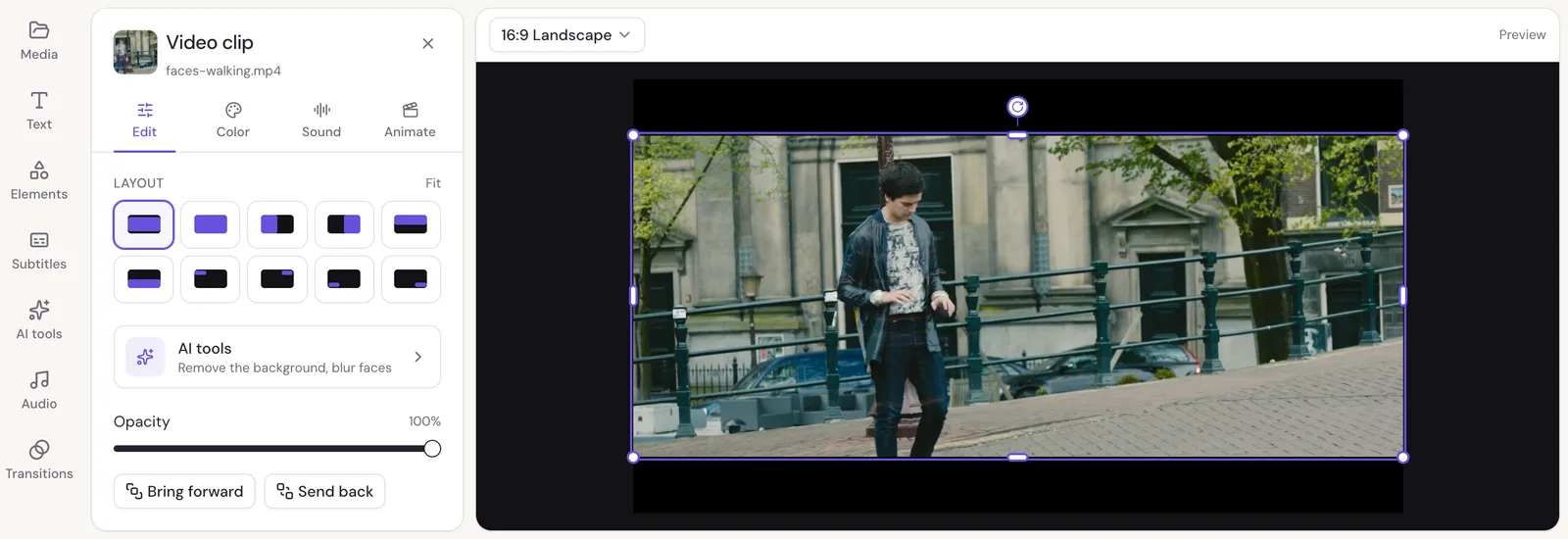
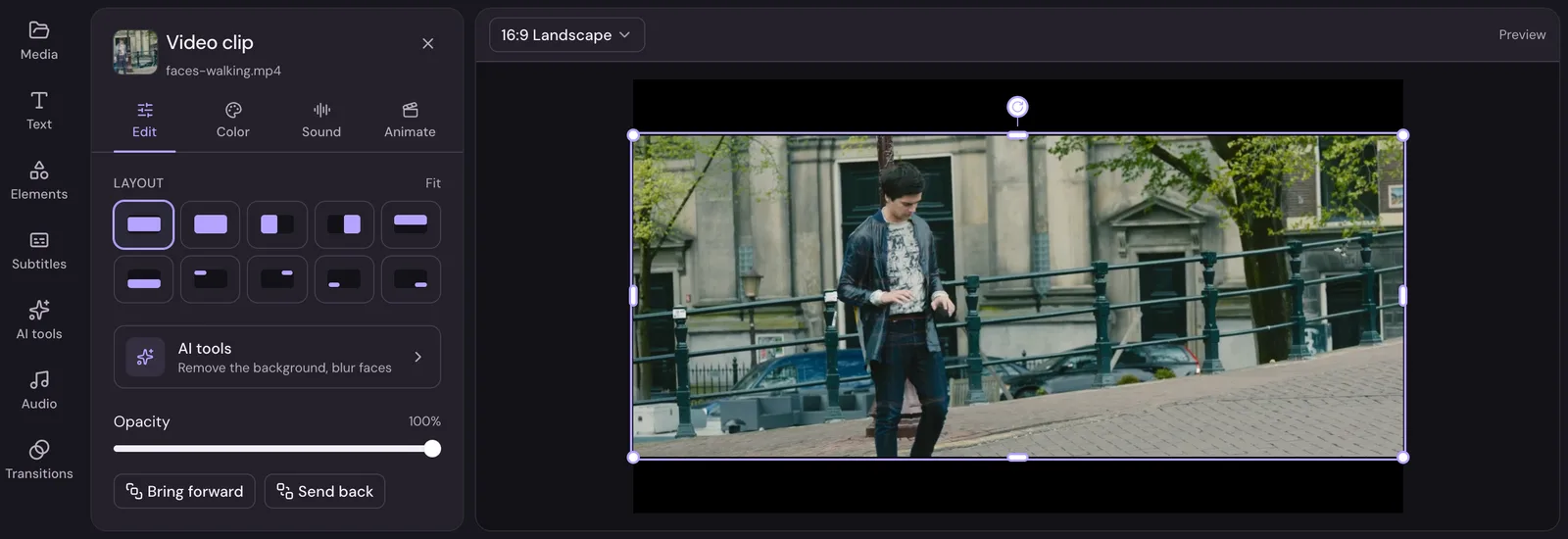
Layout places a clip in the frame: Fit shows the whole picture, Fill fills the frame and cuts off what doesn't fit, and the others put it in one half or one corner. You can also drag the clip on the preview and resize it by its handles; the layout then says Placed by hand.
Opacity makes a clip see-through. Bring forward and Send back change which of two things showing at the same time is in front. There's more about this in Put a video or photo on top.
Color
The Color tab has filters and adjustments.
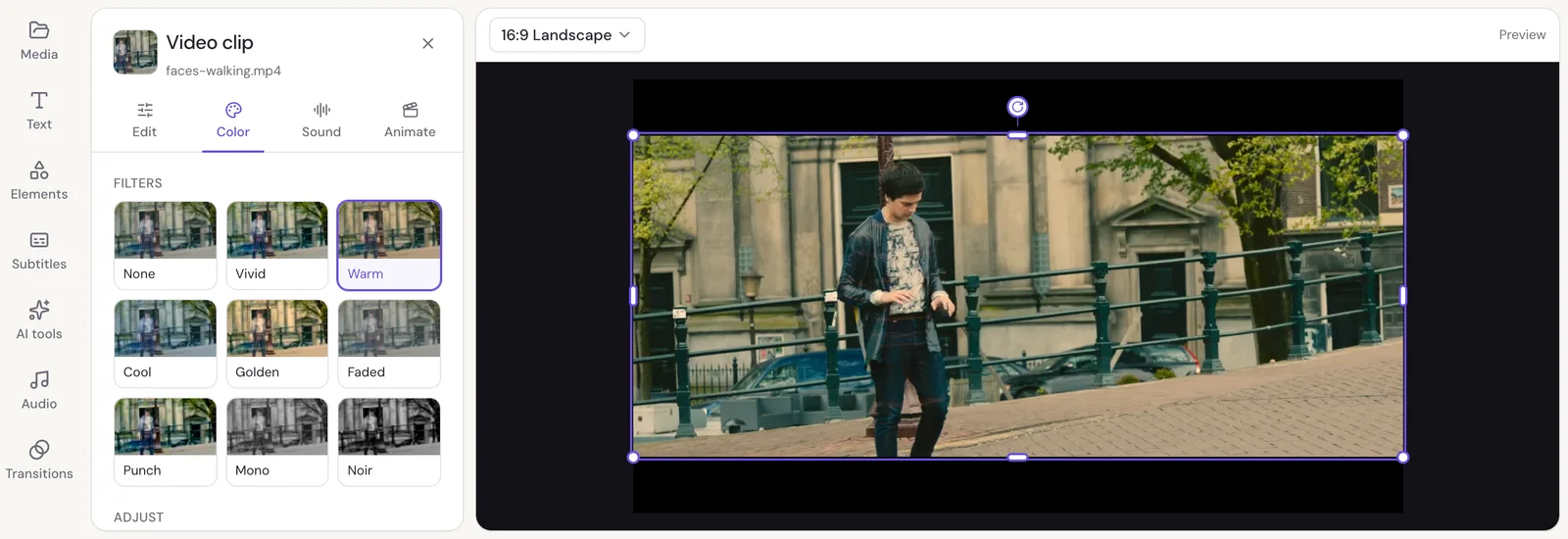
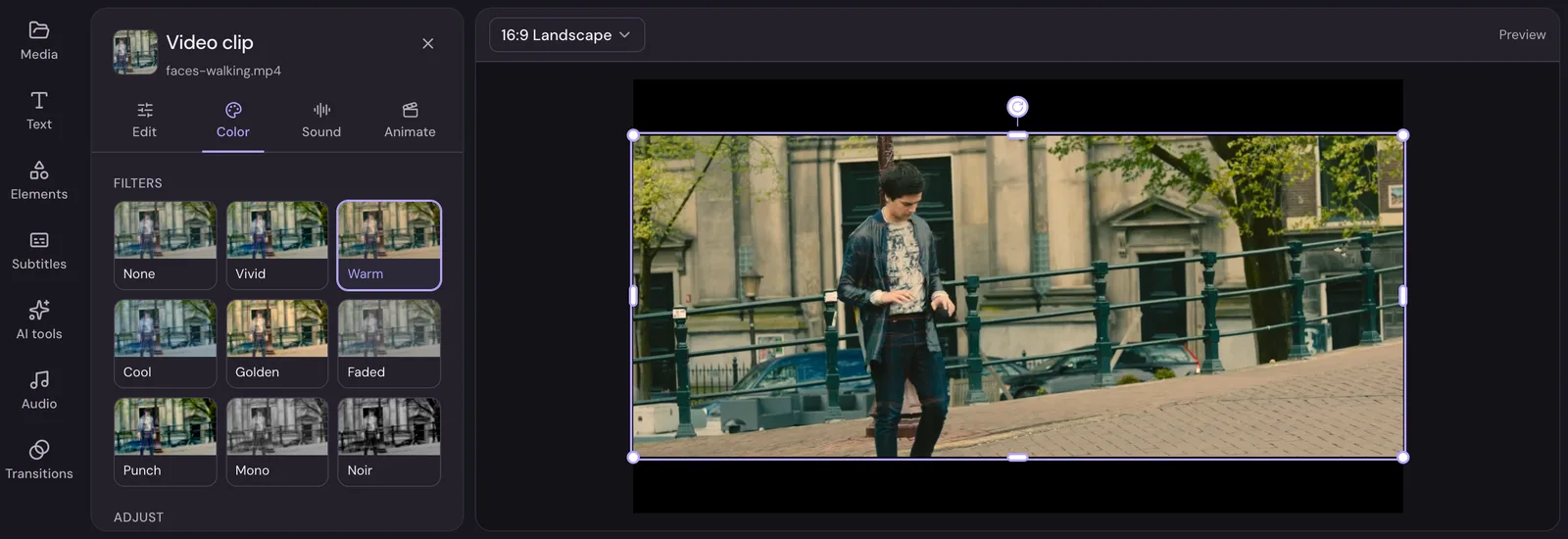
- Filters: None, Vivid, Warm, Cool, Golden, Faded, Punch, Mono and Noir. Each tile shows your own clip in that filter.
- Adjust: Exposure, Brightness, Contrast, Saturation and Temperature, each from −100 to +100. Reset sets them back.
A filter and your adjustments add up, so you can pick Warm and then turn the saturation down.
Sound
The Sound tab sets the clip's own sound: Volume (up to 200%), Fade in and Fade out. Detach sound puts the sound on a clip of its own, so you can move and trim it apart from the picture. See Add music and a voiceover.
The clip's length
At the bottom of the Edit tab, Length says how long the clip lasts in your video, and Part of the original which part of the file it uses.