Projects, saving and your files
How projects save to your account, why your files stay on your computer, and what to do when a file goes missing.
Studio keeps two things apart: your project, which is your edit, and your files, which are the videos, photos and sounds you used. The project saves to your account. The files stay on your computer.
Your projects
Your projects is the first page after you sign in, and the arrow at the top left of the editor goes back to it. Click a project to open it, or New project to start one.
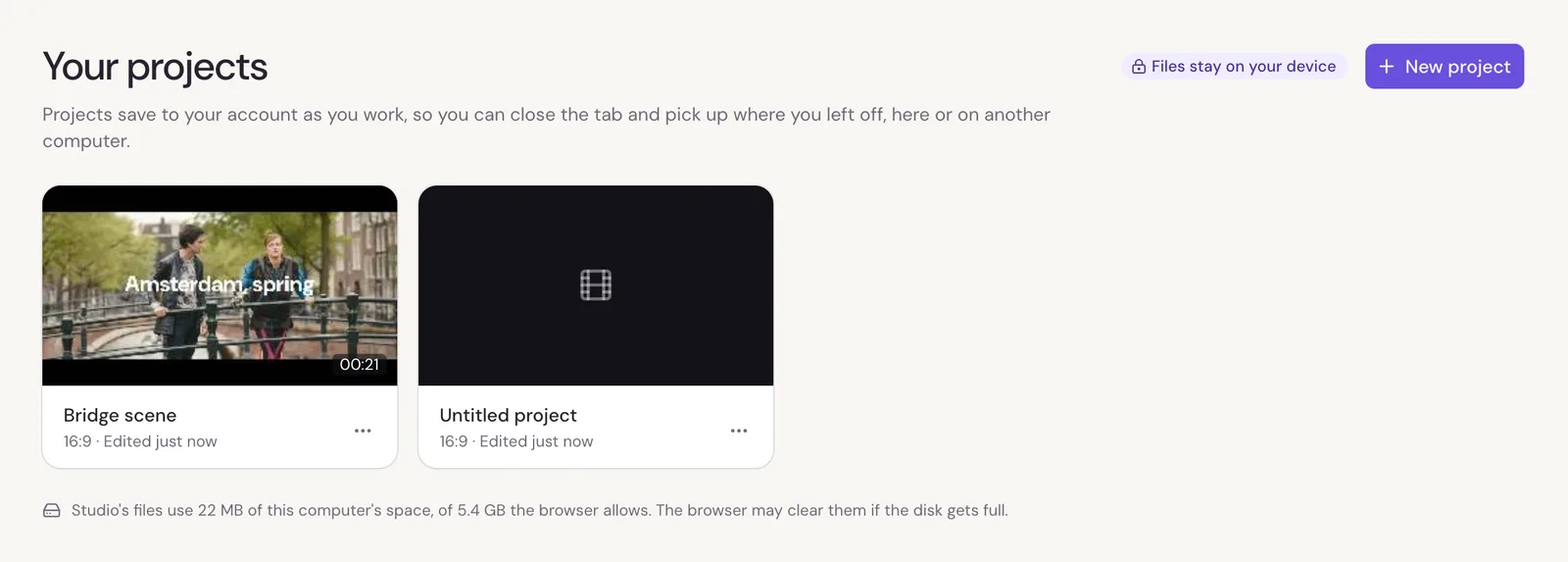
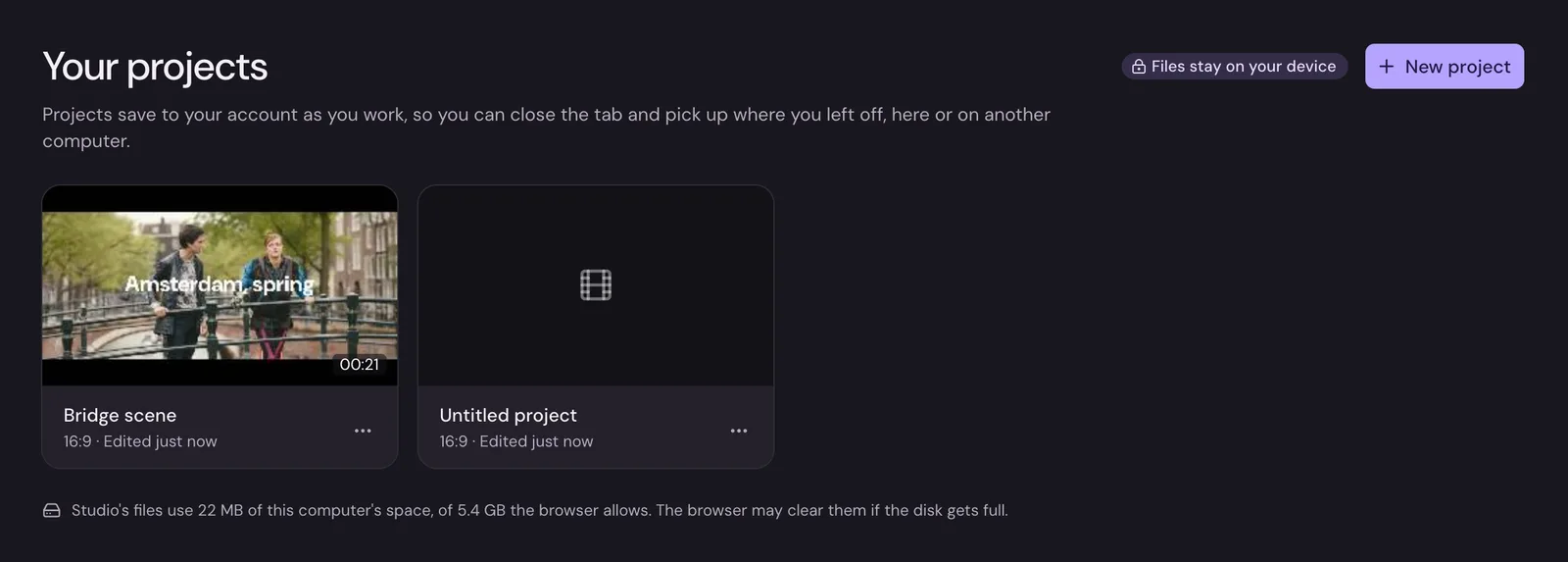
Each project's ⋯ menu has Rename, Duplicate and Delete. You can also rename a project by clicking its name at the top of the editor.
Saving
Studio saves as you edit; there's no save button. The header says how it's going:
- Saving, then Saved: your latest edits are in your account.
- Saved in this browser: Studio couldn't reach your account, such as when you're offline. Your edits are safe in this browser and go to your account once it can reach it.
- Not saved: something stopped it saving. Point at it to see why.
Your files stay on your computer
Studio never uploads your videos. When you add a file, your browser keeps a copy of it on this computer, so the project opens with its files next time. Your account only holds the edit: which files are used, where, and everything you did to them.
That has a few results worth knowing:
- On another computer, the project opens with your edits, but Studio asks you for the files. Choose the same files there.
- Clearing your browser's data for the site deletes its copies. The project is still in your account, and Studio asks for the files when you open it.
- In private browsing, the browser can't keep copies. Studio says so; your edits still save, and it asks for the files again next time.
Deleting a file on your computer after you've added it is fine: Studio edits from its own copy. Under your projects, Studio says how much of this computer's space its copies use. A browser can clear them when the disk gets full; if that happens, Studio asks for the files again.
When a file is missing
When a project opens without some of its files, a bar at the top of the editor says which ones. Click Find the files and choose them on your computer. Studio matches them by name and size, so you can choose several at once. The clips come back as they were.
Editing in two places at once
If the same project is saved from another browser while you're editing it here, Studio stops and asks:
- Keep both keeps this browser's version as a copy, next to the other one.
- Open the newer one opens the version saved elsewhere.
Either way, nothing you did is thrown away without you choosing it.
Your account
Open your account menu at the top right and choose Account settings to change your name or password. If you sign in with Google, you can add a password there too.
Delete account, at the bottom, deletes your account and every project in it, and the copies of your files this browser keeps. Your original files aren't touched. It can't be undone.