Blur faces
Studio finds and follows the faces in a clip and blurs them. Choose who stays visible and how faces are hidden.
Blur faces finds the faces in a video clip, follows each person as they move, and hides their faces. You choose who stays visible. It runs on your computer, so your video isn't uploaded.
Blur the faces in a clip
- Click a video clip on the timeline.
- Open AI tools and click Blur faces.
- Click Blur faces.
Studio looks through the clip in the background and lists the people it finds under People in this clip, as it finds them. Everyone is blurred to start with.
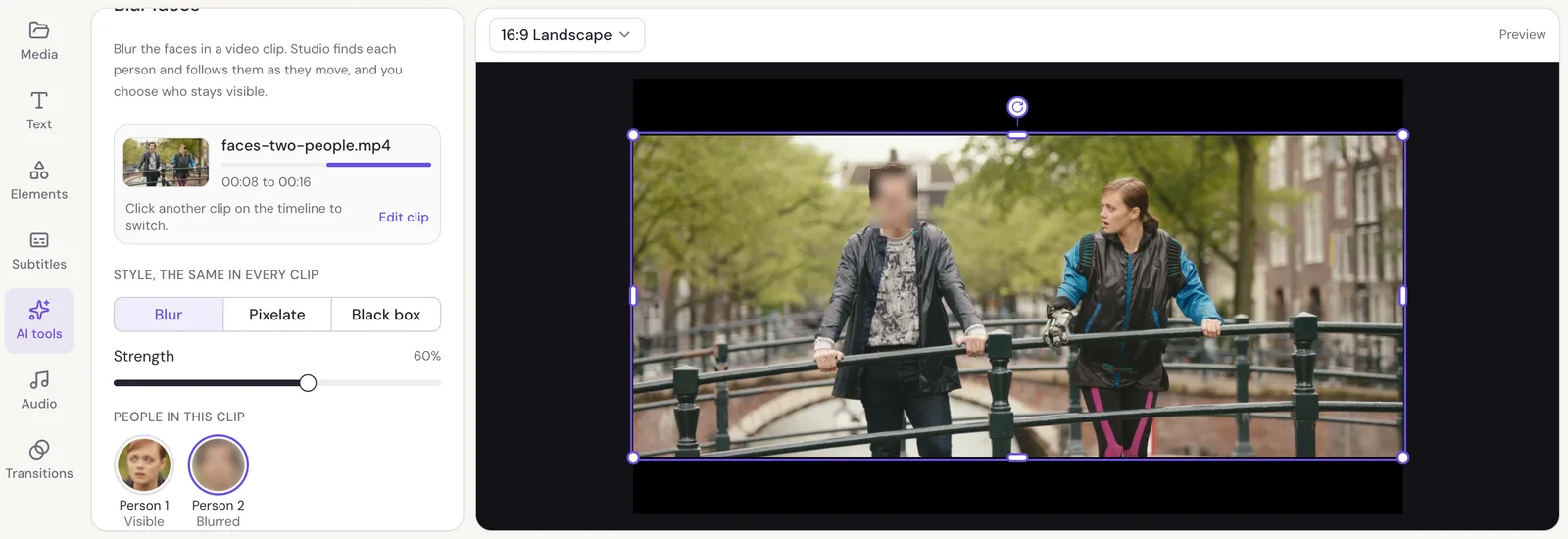
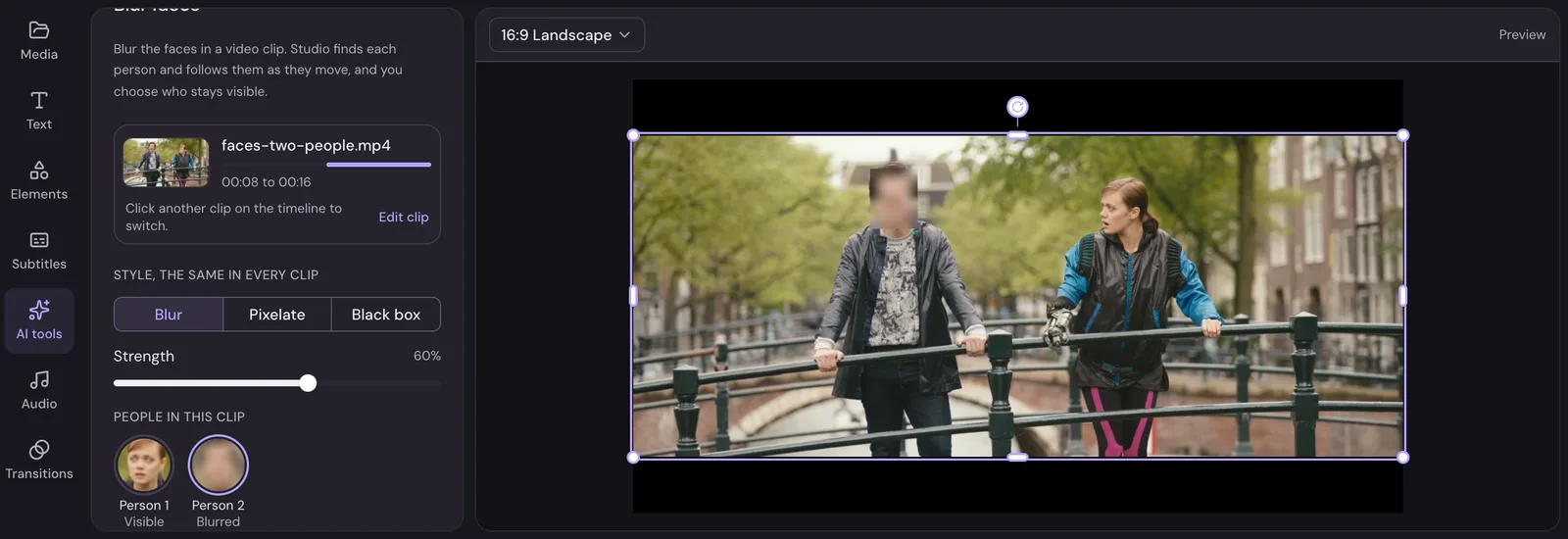
Keep someone visible
Click a person's face in the list to keep them visible, everywhere they show up in the clip. Click again to blur them.
How faces are hidden
Under Style, the same in every clip, pick Blur, Pixelate or Black box, and set the Strength.
More than one clip
Do the same to every clip blurs faces in every video clip. Turn off shows the faces in this clip again.
The blur stays with each person when you move, trim or split the clip.
Good to know
- Faces seen from the side, very small or half hidden are harder to find. Play the clip through before you export and check every face is covered.
- If you export before Studio has finished, the export first says Finishing finding faces and goes on once it's done.
- To blur something that isn't a face, such as a number plate or a screen, use the free Blur video tool.