Add text, shapes and emoji
Put titles and captions on your video, style them, and add shapes, arrows, emoji and a progress bar.
Text, shapes and emoji go in at the playhead and show for a few seconds. Drag them on the preview to place them, and drag their ends on the timeline to set how long they show.
Add text
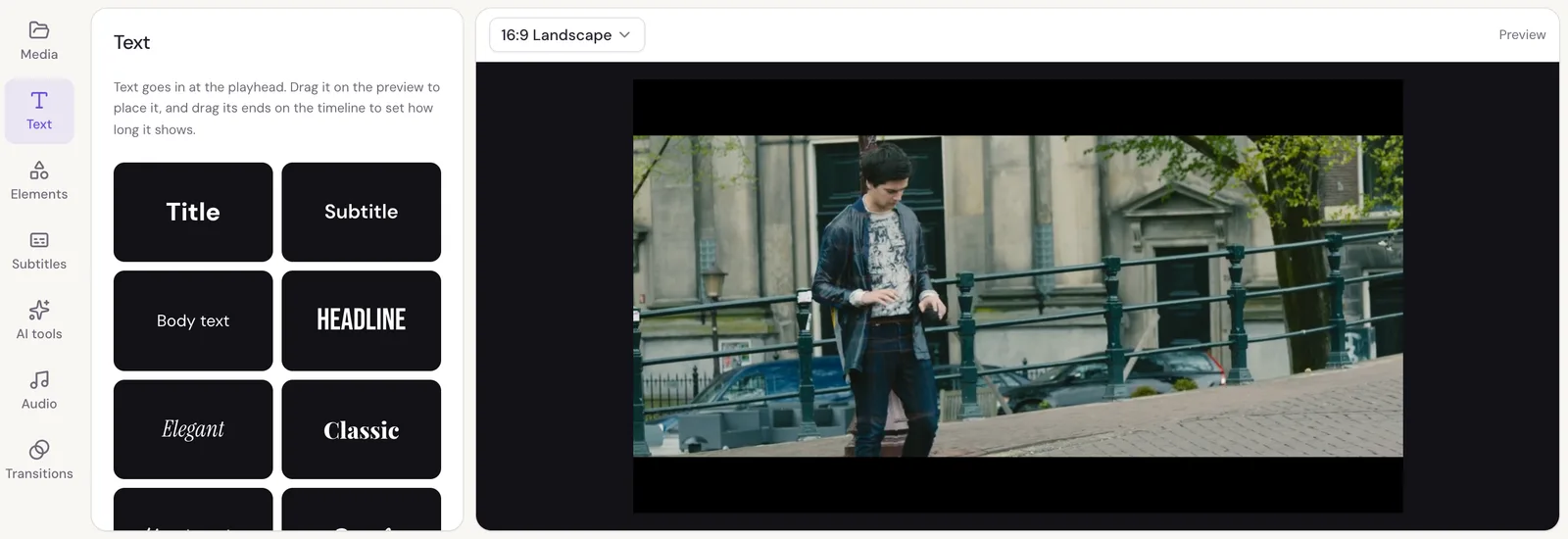
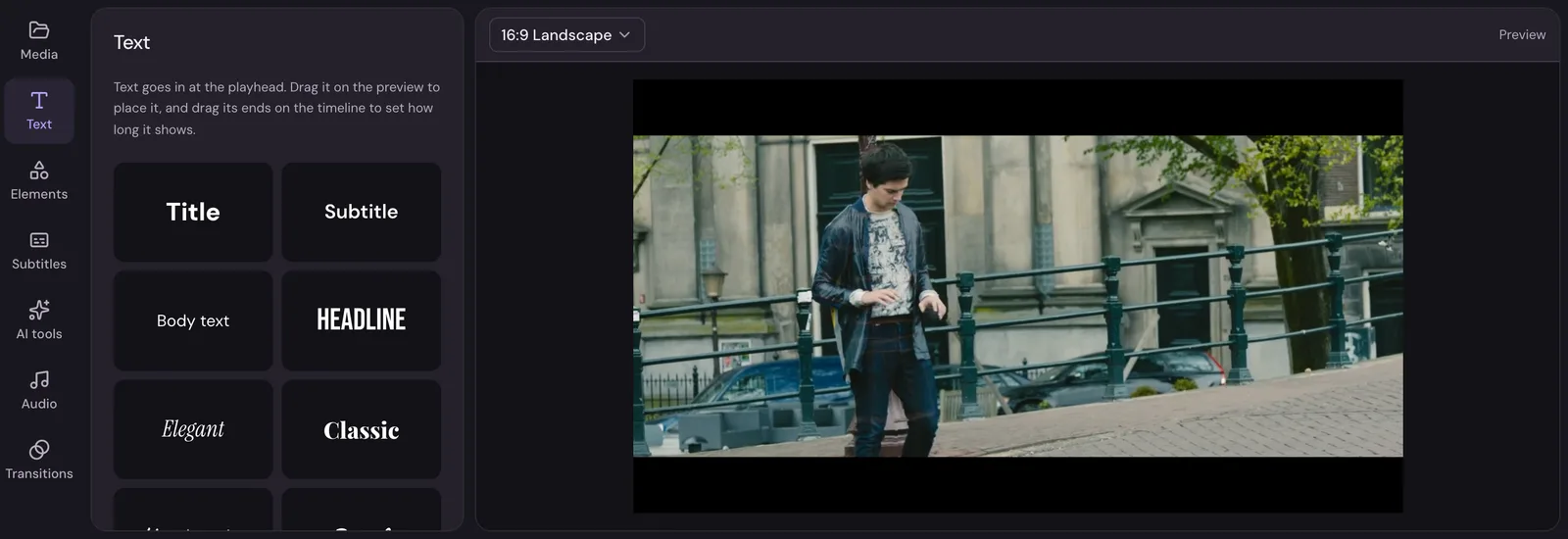
Open Text in the menu on the left and click a style: Title, Subtitle, Body text, Elegant, Headline, Classic, Handwritten, Script, Marker, Code, Boxed or Lower third. Each is a starting point; everything about it can be changed.
The new text is selected, with its settings in the panel. Type your words in Words, or double-click the text on the preview and type there. Press Enter for a new line.
Style text
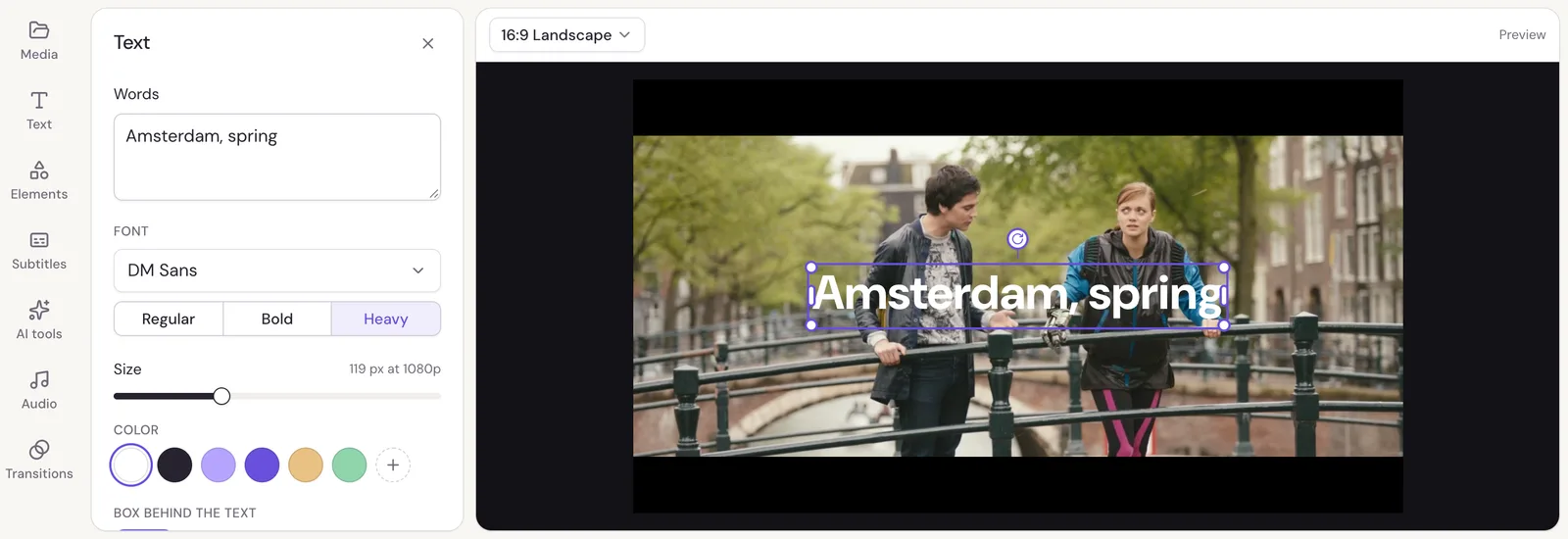
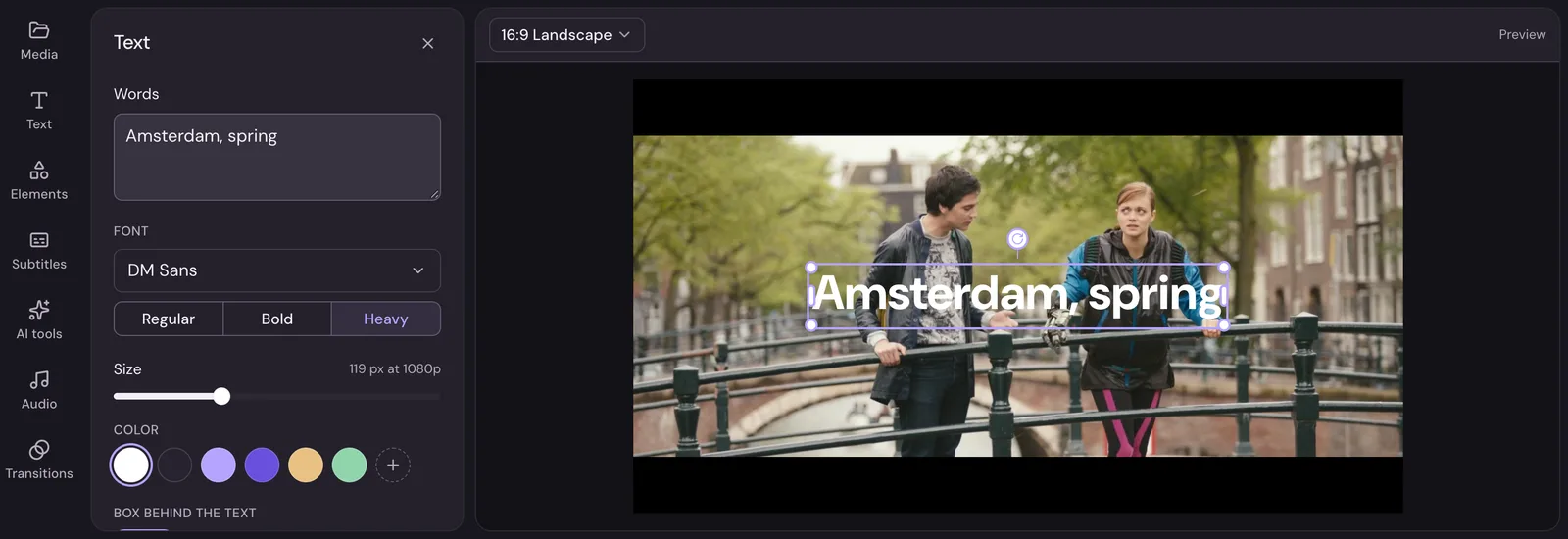
- Font and its weight.
- Size, shown as pixels in a 1080p video.
- Color, Box behind the text, Outline and Shadow. Pick a swatch or your own color; the box, outline and shadow can be turned off.
- Letter spacing and Line height.
- All capitals writes the words in capitals without retyping them.
- Alignment: left, center or right.
- Place on the frame: nine spots, from top left to bottom right.
- Angle turns the text.
On the preview, drag text to move it, drag a corner to make it bigger or smaller, and drag a side to set how wide it is before the words wrap. Fit the words sets the width back to the words' own.
Make text come in and go out
At the bottom of text's settings, In and Out choose how it appears and disappears: a fade, a slide, a zoom, a pop and more. See Animate with In, Out, and pan and zoom.
Shapes, arrows and emoji
Open Elements in the menu.
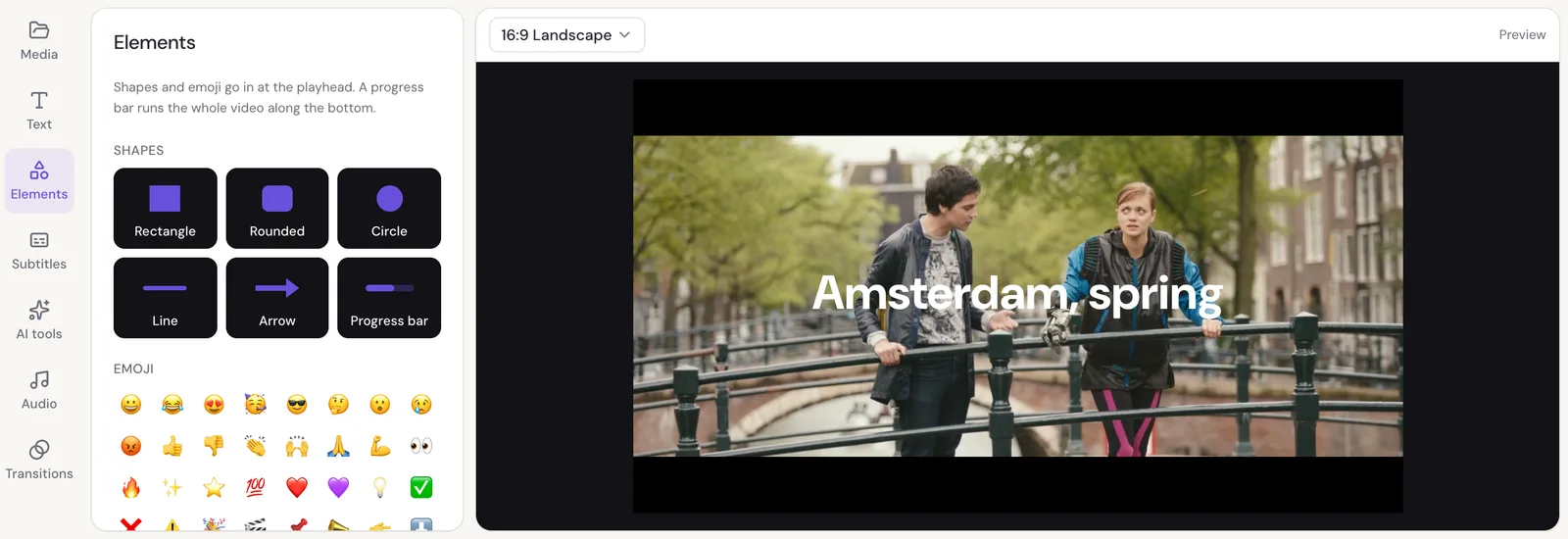
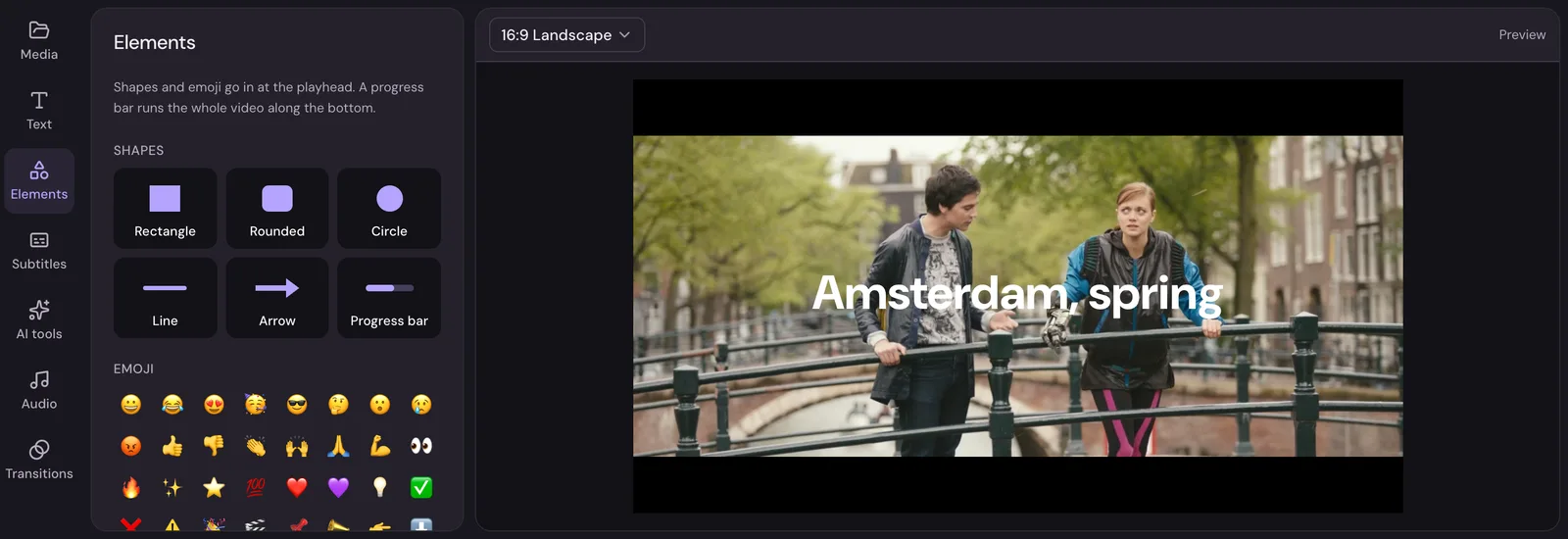
- Shapes: Rectangle, Rounded, Circle, Line, Arrow and Progress bar. A shape's settings are its Color, a Border for the rectangles and the circle, Opacity and Angle, and In and Out animations.
- Emoji: click one to add it. An emoji is text, so it has text's settings and you can make it as big as you like.
A progress bar
The Progress bar fills from left to right while it shows, so it's a quick way to show how far through a video someone is. It runs the whole length of your video along the bottom. Drag its ends on the timeline to change when it starts and finishes. Done is the color of the filled part and The rest of the bar the color of what's left.
Text in front of or behind other things
Text on a higher row shows in front of what's on the rows below. To put text behind something, drag it to a lower row on the timeline. See Edit on the timeline.