Add subtitles
Make subtitles from the speech in your video, fix and style them, or type or import them yourself.
Studio can listen to the speech in your video and write subtitles timed to each word. It runs on your computer, so your video isn't uploaded anywhere to be transcribed. You can also type subtitles yourself or import an SRT or VTT file.
Make subtitles automatically
- Put a video or voiceover with someone talking on the timeline.
- Open Subtitles in the menu on the left.
- Under Listen to, tick the files with speech in them. Sound files other than voiceovers are usually music, so they're left out unless you tick them.
- Under Language spoken, pick the language, or leave it on Detect it for me.
- Pick a Style: Classic, Bold, Yellow, Highlight, Plain or Boxed.
- Click Make subtitles.
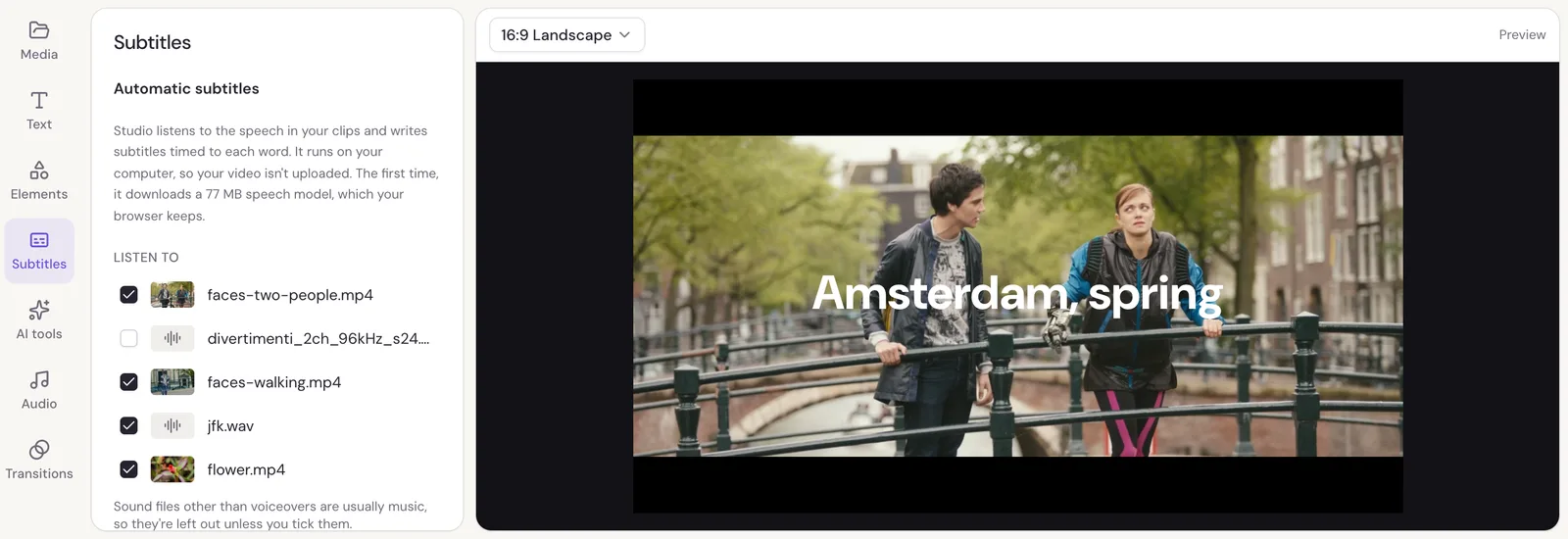
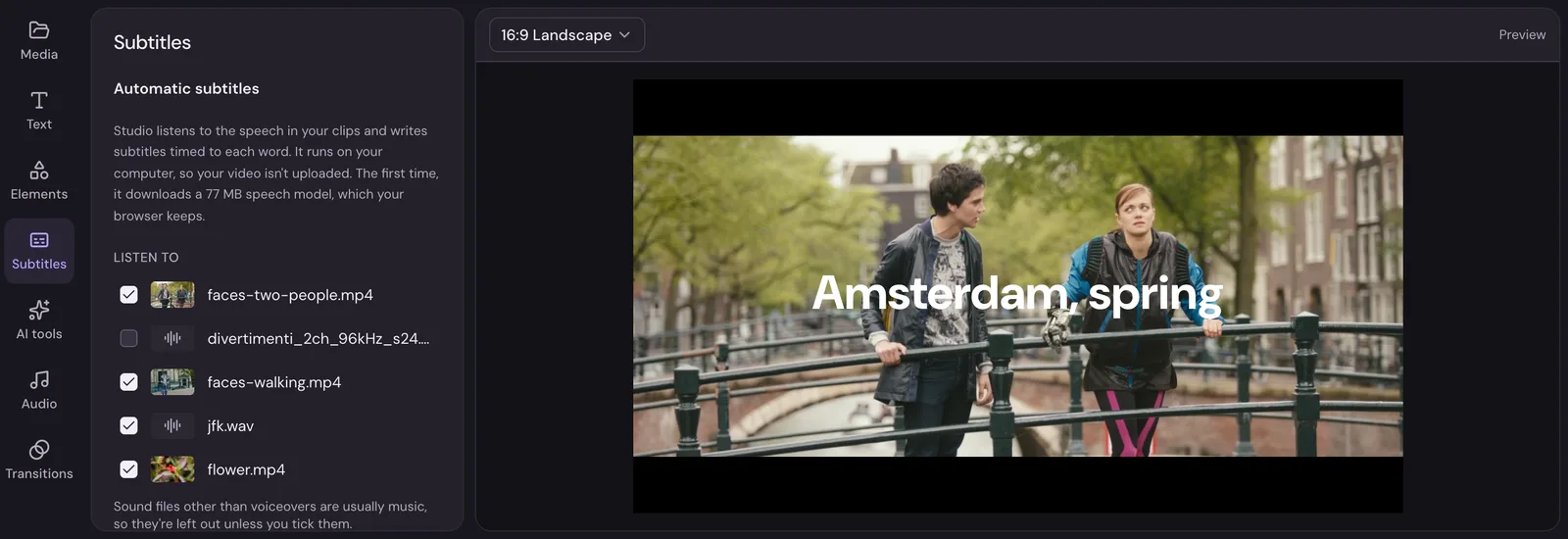
The first time, Studio downloads a 77 MB speech model, which your browser keeps for next time. Then it listens through your clips, showing its progress, while you keep editing.
Studio remembers what it heard in each file, so making subtitles again after more editing only listens to the new files. Tick Listen again to start over.
Fix and restyle them
When they're done, the Subtitles panel lists every line.
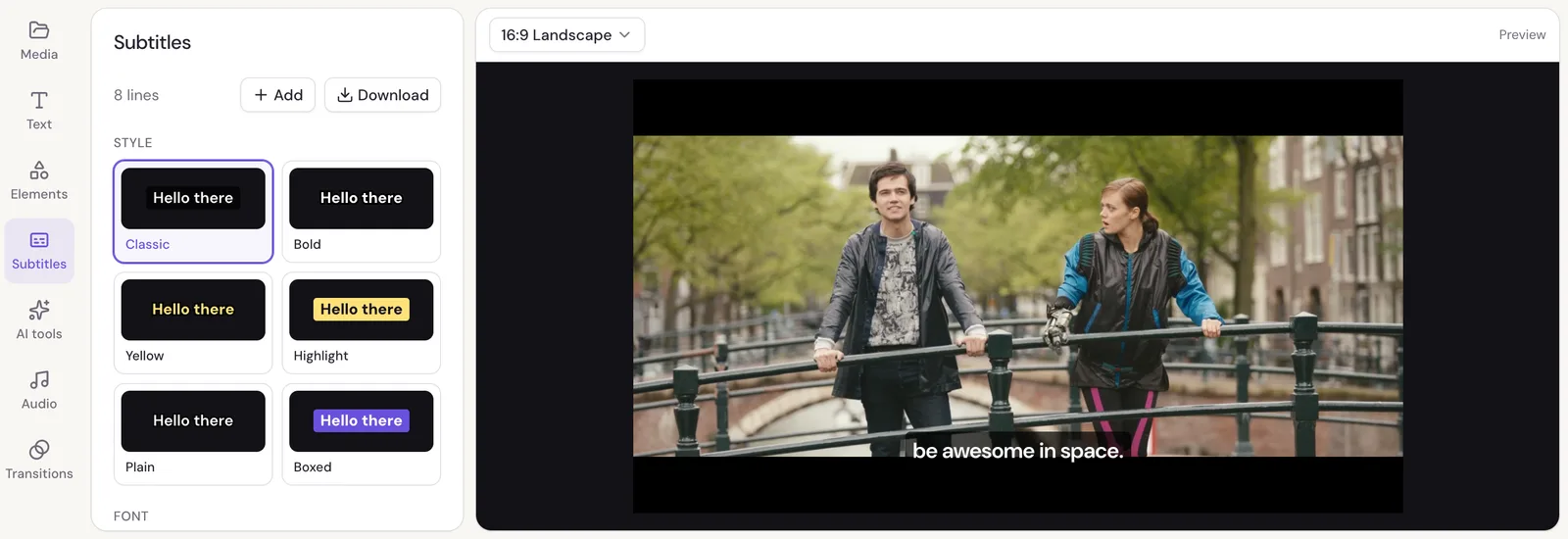
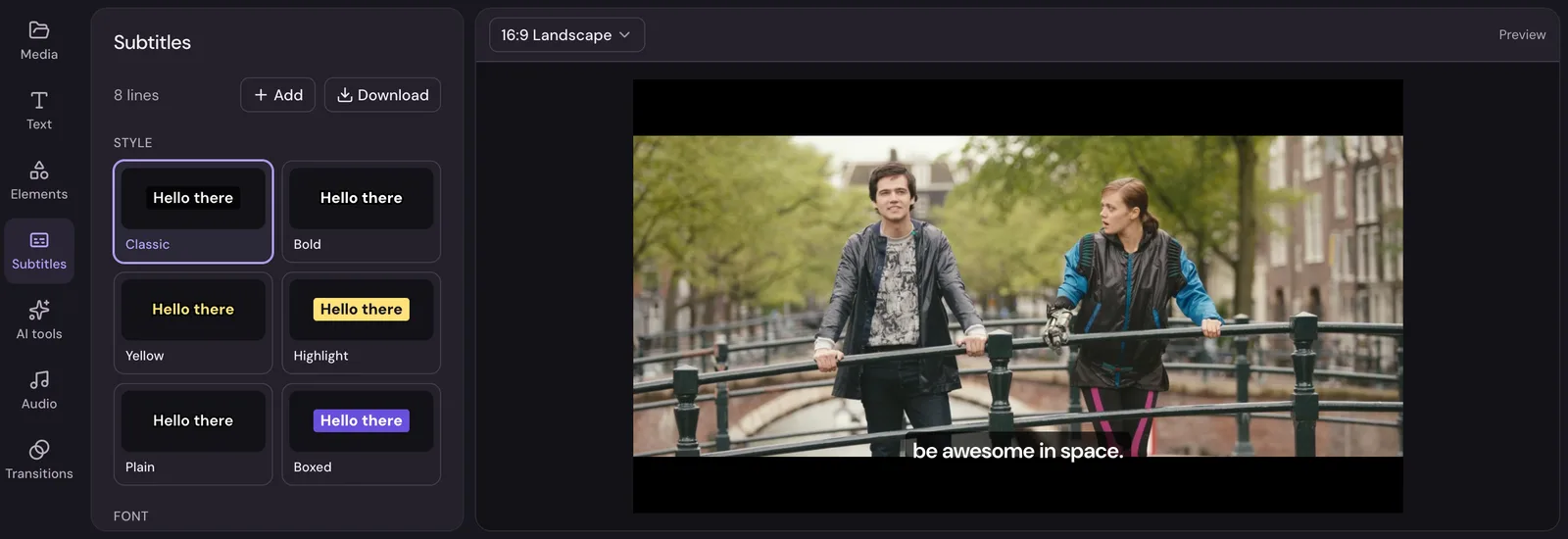
- Click a line to go to it, and type in it to fix a word.
- Style, the font, Size and Position (Top, Middle or Bottom) change every line at once.
- On the timeline, subtitles sit on their own row at the top. Drag a line's ends there to change when it shows, or click it to edit it in the panel.
Subtitles stay with the speech in their clip: move or trim the clip and they follow. Lines in a part you trimmed away come back if you trim the clip longer again.
Add lines yourself
You don't need automatic subtitles to have subtitles:
- Type a line at the playhead adds an empty line where the playhead is, to type into.
- Import an SRT or VTT reads a subtitle file. Its times are taken as times in your video as it plays in Studio.
Once there are subtitles, Add at the top of the panel does both.
Download the subtitles
Download saves the subtitles as a SubRip file (.srt) or a WebVTT file (.vtt), to upload next to your video on YouTube or anywhere else that takes them.
Make them again or remove them
Make again goes back to the settings, to listen to other files or in another language. It replaces the subtitles you have, edits included. Remove all takes every line out.