Remove or blur the background
Take out what's behind the person in a video, or blur it, with no green screen.
Remove background takes out what's behind the person in a video clip, so what's on the row underneath shows instead, or blurs it. There's no green screen needed. It runs on your computer, so your video isn't uploaded.
Remove or blur a clip's background
- Click a video clip on the timeline.
- Open AI tools and click Remove background. (A clip's Edit tab has a shortcut to the AI tools too.)
- Click Remove background.
- Under What's behind the person, choose Remove or Blur.
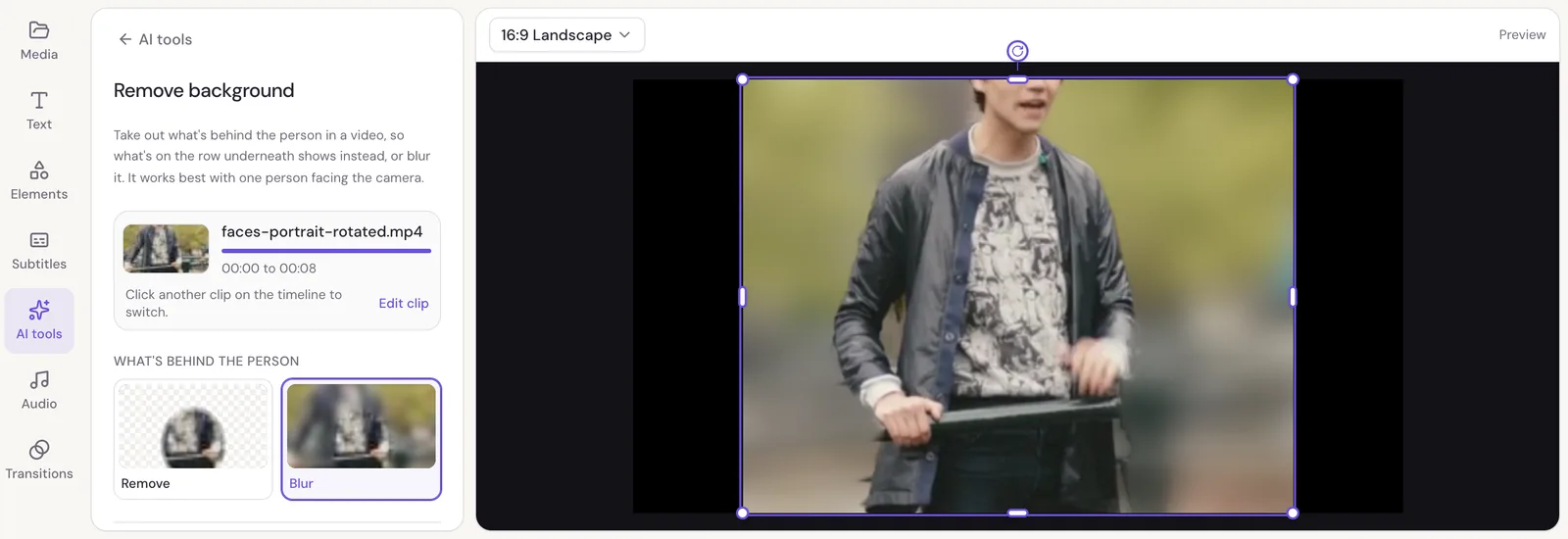
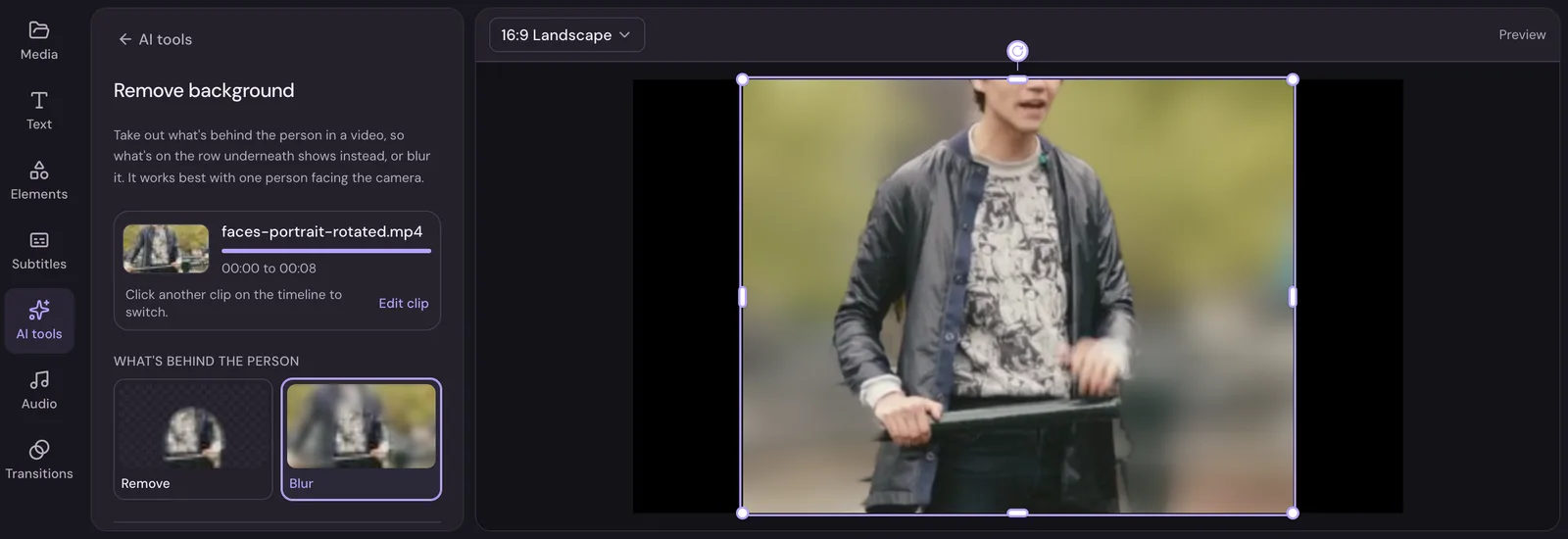
Studio works through the clip in the background while you keep editing, and shows its progress. The preview shows the result for the parts it has done.
Do the same to every clip gives every video clip the same setting. Turn off puts the background back.
What shows instead
With Remove, whatever is on the rows under the clip shows through: another video, a photo, or nothing, which shows your background color. To put a person in front of something else, put that on a lower row at the same time. See Put a video or photo on top.
Getting a clean result
- It works best with one person facing the camera.
- Good light and a person who stands out from what's behind them help.
Exporting
If you export before Studio has finished a clip, the export first says Finishing the background removal and goes on once it's done.