Put a video or photo on top
Overlay a video, photo or logo on your video, place it in a corner or a half of the frame, and choose what's in front.
Anything on a higher row of the timeline shows on top of what's below it. That's how you put a webcam video in a corner, a logo over your video, or two videos side by side.
Put something in a corner
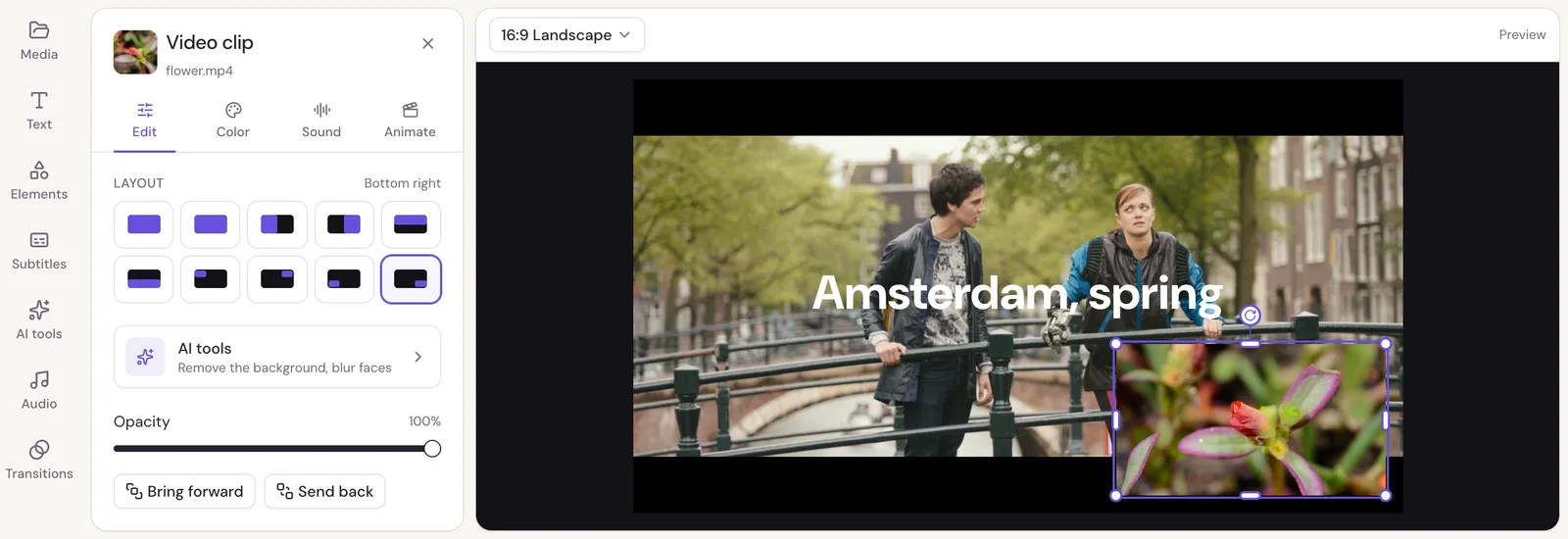
Open Media, move the playhead to where it should start, and click Overlay under the file. Studio puts it in the bottom-right corner, above everything showing at the playhead, starting there.
You can also drag a file from Media onto the timeline, above the row your video is on.
Choose where it sits
Select the overlay, and in its Edit tab pick a Layout:
- Fit shows the whole picture, with space around it if its shape differs from the frame's.
- Fill fills the frame, cutting off what doesn't fit.
- Left half, Right half, Top half and Bottom half fill half the frame. Put one video in the left half and another in the right half, on two rows at the same time, for a split screen.
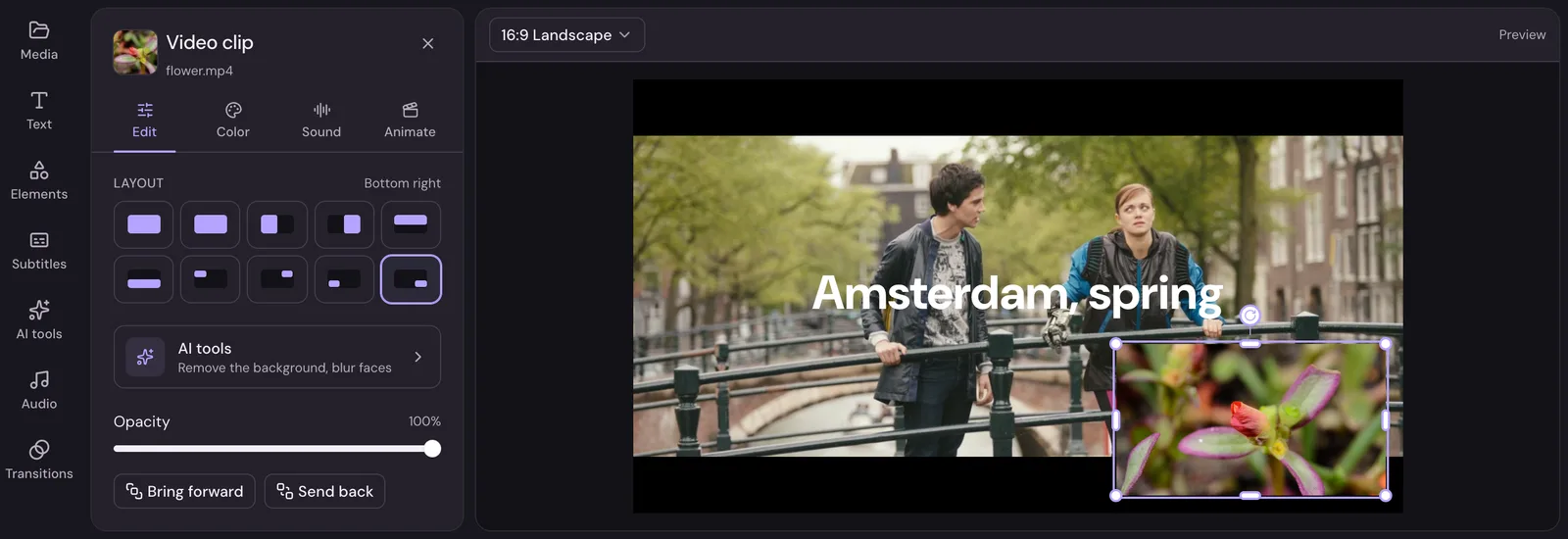
- Top left, Top right, Bottom left and Bottom right put it in a corner.
Or drag it on the preview and resize it by its corner handles. Studio shows guides when it lines up with the middle or the edges of the frame.
What's in front
A higher row shows in front. To change it, drag the clip to another row, or use Bring forward and Send back in its Edit tab.
Make it see-through
Opacity in the Edit tab makes a clip see-through, from 0% to 100%.
Remove the background instead
To show a person without what's behind them, on top of another video or a color, use Remove background in the AI tools. See Remove or blur the background.
Logos and photos
Photos (JPEG, PNG, WebP, HEIC and more) and GIFs work like video clips here. A PNG with a see-through background keeps it, so a logo with no box around it sits cleanly on your video. A photo shows for a few seconds; drag its ends on the timeline to keep it up longer.