Add transitions
Put a crossfade, fade to black, slide, wipe or another transition between two clips, and set how long it runs.
A transition takes one clip into the next: a crossfade, a fade through black, a slide and more. In Studio a transition never moves anything on the timeline. It plays across the cut, half before it and half after.
Add a transition
Wherever one clip ends as another starts, the timeline shows a small diamond on the cut. That works on any rows: the clip that comes next can be on the same row or on another one.
- Click the diamond. The panel shows the transition's settings.
- Pick one. Studio plays it once so you can see it.
- Drag Length to make it quicker or slower, from 0.1 to 2 seconds.
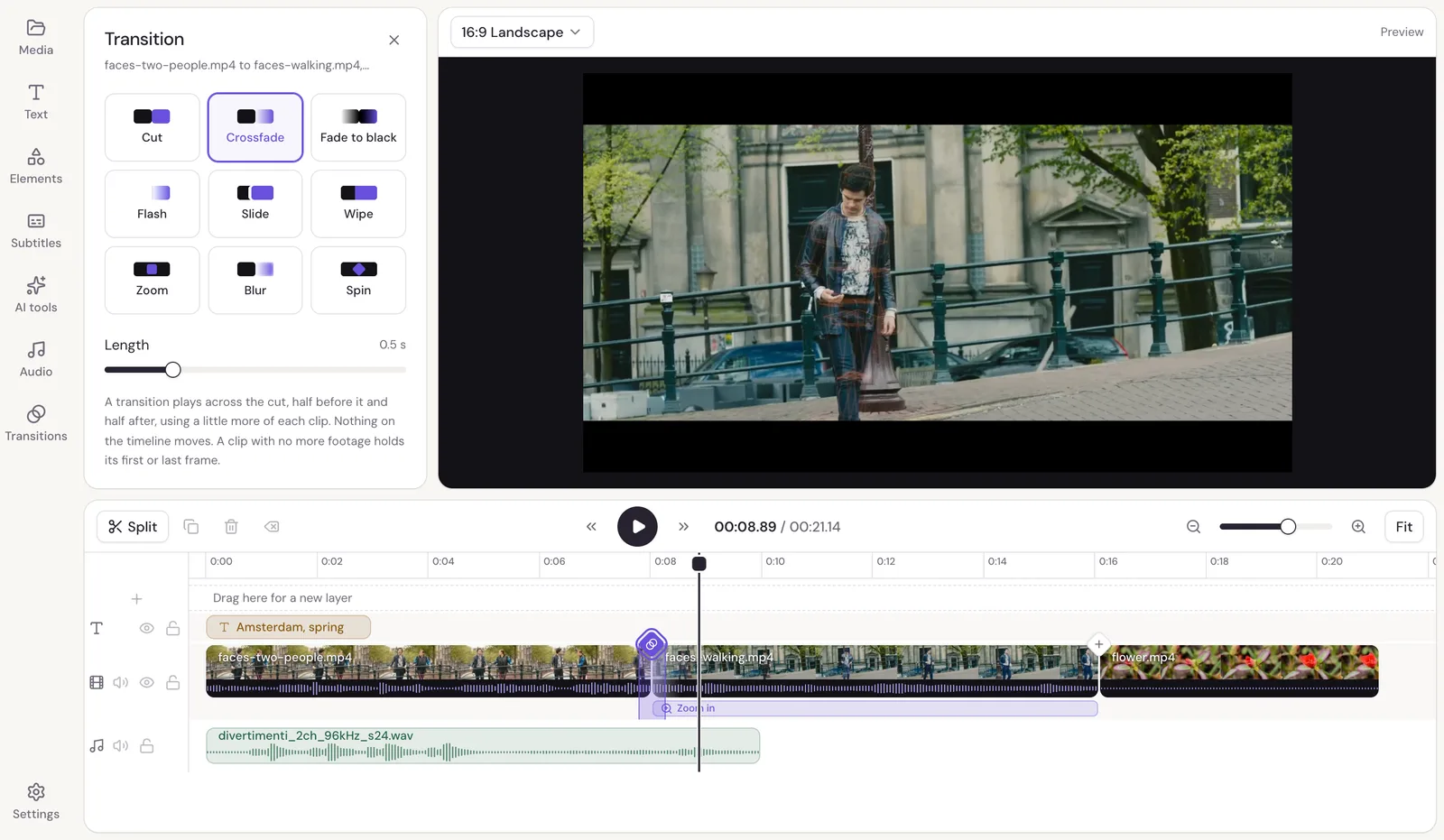
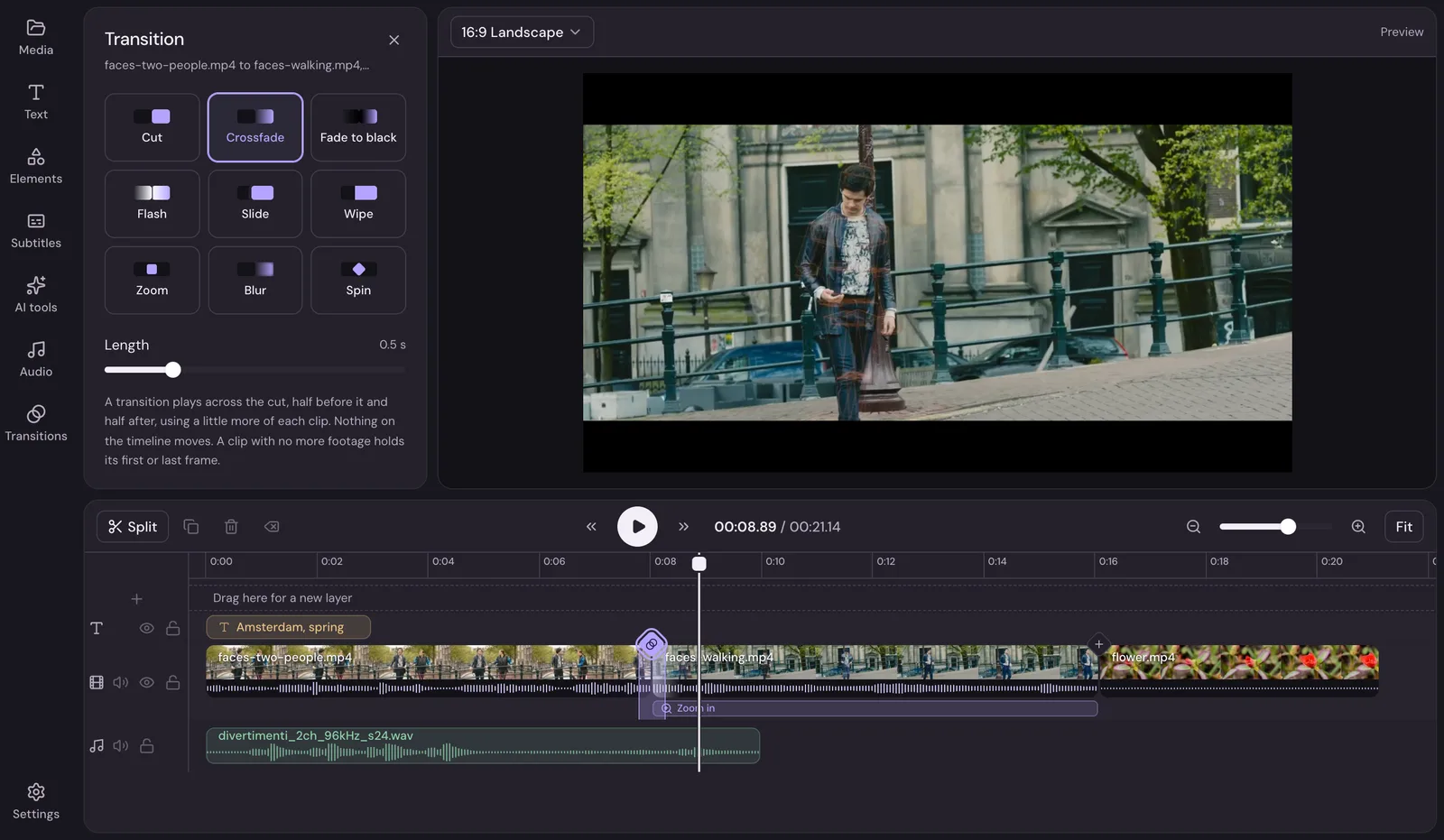
The transitions are Crossfade, Fade to black, Flash, Slide, Wipe, Zoom, Blur and Spin. Cut takes the transition out again.
Every cut at once
Use on every cut gives every cut in the video the same transition and length. With Cut picked, it takes every transition out.
Find every cut
Open Transitions in the menu on the left to see every cut in your video, with the transition on each. Click one to change it. If the list is empty, put a clip where another one ends.
How the time works
A transition uses a little more of each clip than you see on the timeline: the end of the first clip keeps playing into the transition, and the next clip starts a little early. If a clip has no more footage past its end, it holds its last frame (or its first) for that moment instead. Nothing on the timeline moves, so your music and titles stay where they were.