Clean up noisy sound
Take wind, hum, fans and room noise out from behind the voices in a clip or a voiceover.
Clean audio takes wind, hum, fans and room noise out from behind the voices in a clip. It runs on your computer, so your video isn't uploaded.
Clean a video clip's sound
- Click a video clip on the timeline.
- Open AI tools and click Clean audio.
- Click Clean audio.
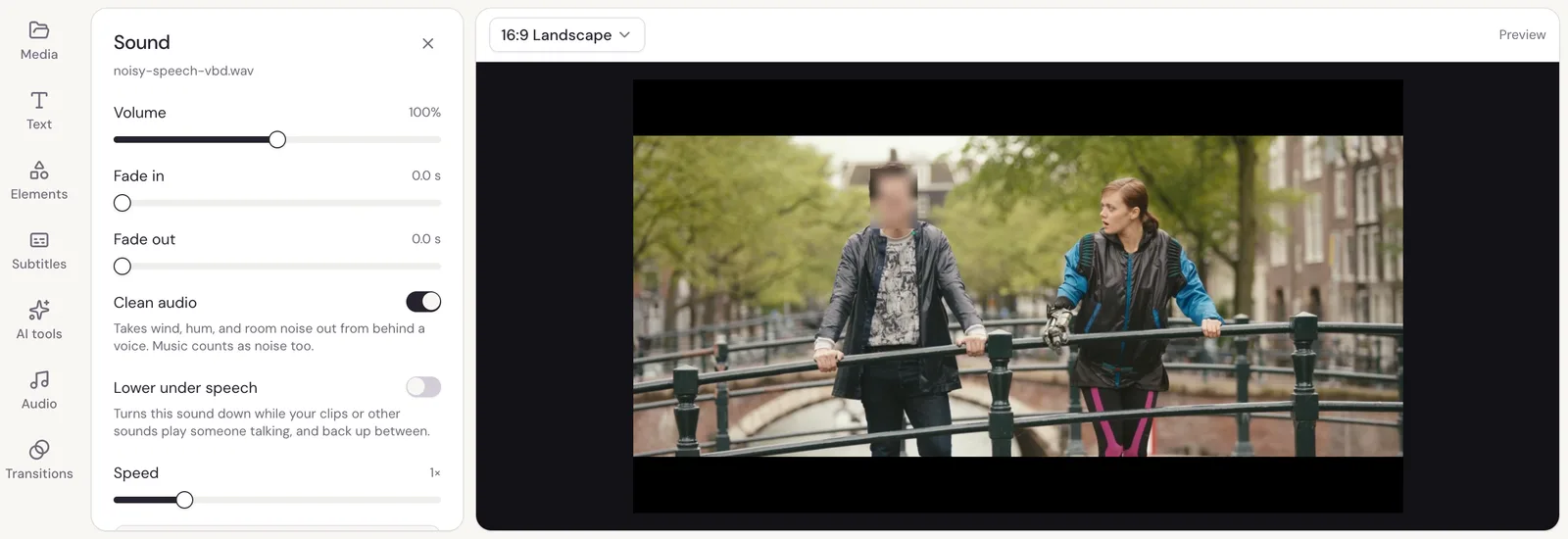
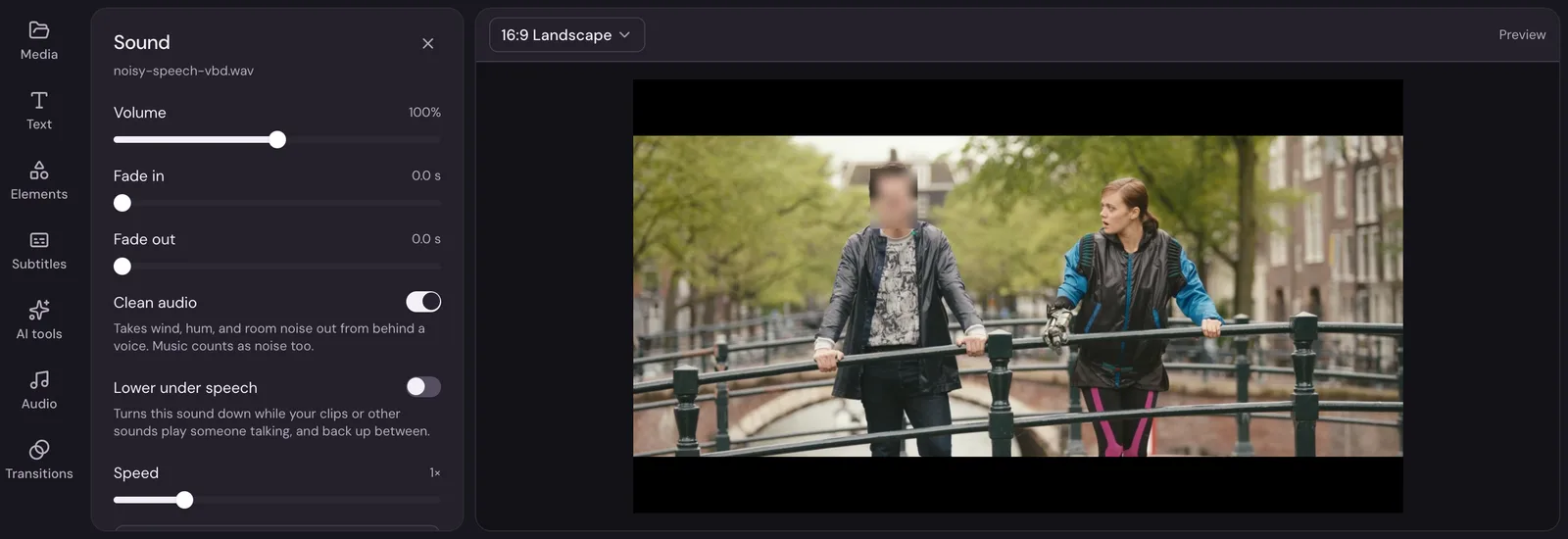
Studio cleans the sound in the background and shows its progress. When it's done, the clip plays with the noise taken out, in the preview and in your export. Do the same to every clip cleans every video clip, and Turn off goes back to the original sound.
Clean a voiceover or other sound
Click the sound on the timeline and turn on Clean audio in its settings.
Good to know
- Music counts as noise too, so use it on clips of people talking, not on your music.
- The cleaned sound is kept in your browser, so it doesn't have to be cleaned again next time you open the project.
- The original file isn't changed. Turning Clean audio off plays the original again.
- If you export before Studio has finished, the export first says Finishing cleaning the audio.
- The free Remove background noise tool does the same to a single file, with no account.