Export your video
Make an MP4 up to 4K, a GIF, an MP3 or a picture of one frame, from all of the video or a part of it.
Export makes the finished file on your computer. There's no watermark, every resolution up to 4K is free, and nothing is uploaded.
Export a video
- Click Export in the top right of the editor.
- Under What to export, leave Video picked.
- Under Length, keep All of it, or pick A part and set where it starts and ends.
- Choose the Resolution: 720p, 1080p or 4K.
- Choose the Quality (Standard or High) and the Frame rate (24, 30 or 60 fps).
- Click Export video.
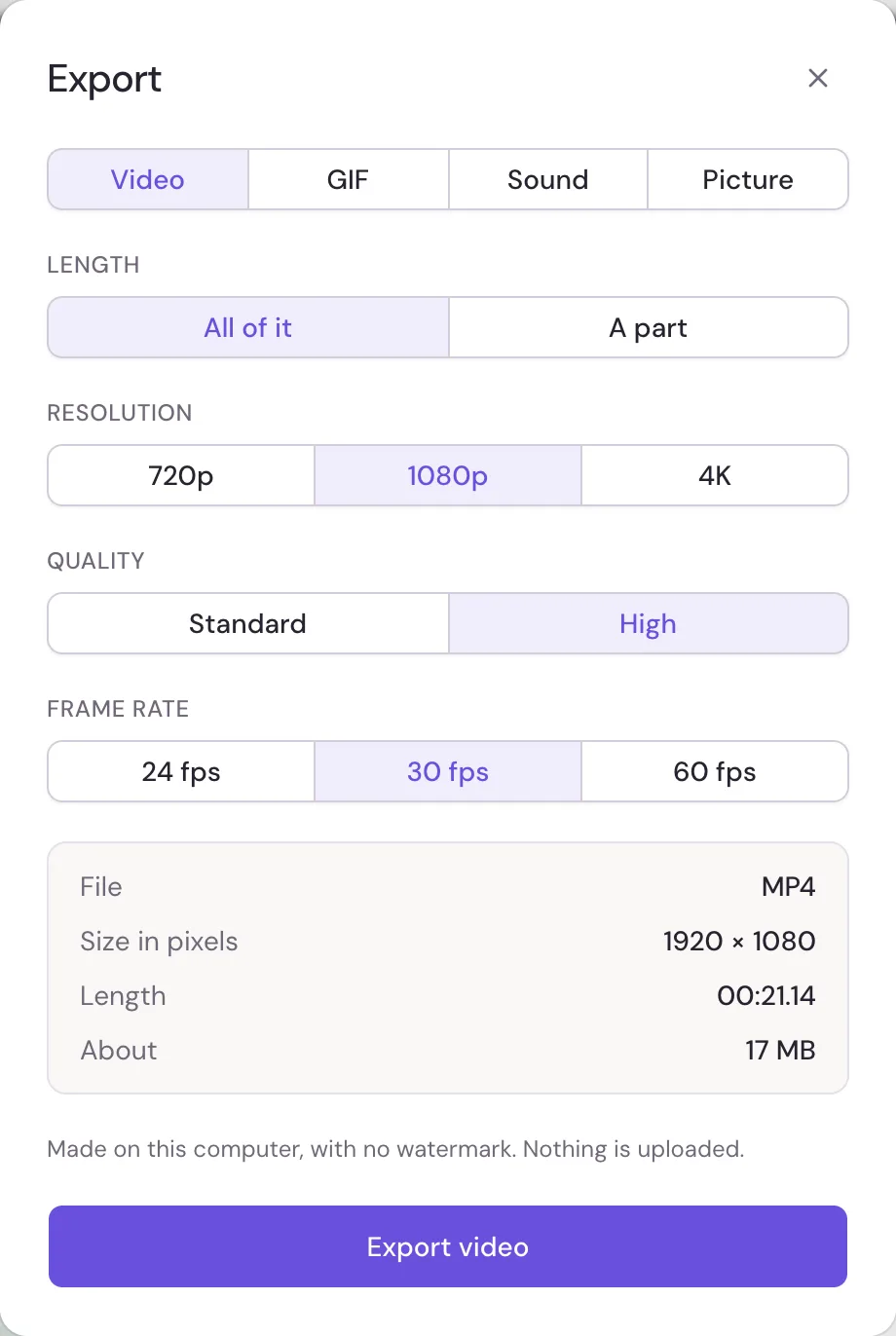
Before you start, the dialog shows the file's size in pixels, its length, and about how big it will be. The video comes out as an MP4 that plays on phones, computers and every site that takes video.
When it's done, you can play it in the dialog. Click Download video to save it, or Change settings and export again.
Keep the tab open while Studio exports. It's faster when the tab stays in front, since browsers slow down tabs you aren't looking at.
Resolution and size
The resolution is the frame's short side, so the size in pixels depends on your frame's shape:
| Frame | 720p | 1080p | 4K |
|---|---|---|---|
| 16:9 Landscape | 1280 × 720 | 1920 × 1080 | 3840 × 2160 |
| 9:16 Vertical | 720 × 1280 | 1080 × 1920 | 2160 × 3840 |
| 1:1 Square | 720 × 720 | 1080 × 1080 | 2160 × 2160 |
| 4:5 Portrait | 720 × 900 | 1080 × 1350 | 2160 × 2700 |
4K takes longer to make and makes a bigger file. 1080p is enough for most phones and social sites.
Export a GIF
Choose GIF, then a Size (240p to 720p) and a Frame rate (10, 15 or 20 fps). GIFs get big fast, so a few seconds works best: pick A part under Length for a longer video.
Export the sound
Choose Sound for an MP3 of everything you hear in your video, at 128, 192 or 320 kbps.
Export one frame
Choose Picture, set The frame at to the moment you want, and pick PNG or JPEG. It's handy for a thumbnail.
If the export doesn't start
- If files are missing, the dialog says to find them first: use Find the files in the bar at the top of the editor. See Projects, saving and your files.
- If AI tools are still working on a clip, the export waits for them and says so.
- If something goes wrong partway, the dialog says so and offers Try again. See When something goes wrong.