Change the frame size
Switch between 16:9, 9:16, 1:1, 4:5 and other shapes, and choose what fills the frame around your video.
The frame size is the shape of your video. Studio can make landscape, vertical, square and other shapes, and you can switch at any time.
Change the shape
Click the size menu above the preview. It names each shape and where it's mostly used:
| Shape | Name | Mostly for |
|---|---|---|
| 16:9 | Landscape | YouTube, laptops, TVs |
| 9:16 | Vertical | TikTok, Reels, Shorts |
| 1:1 | Square | Instagram and Facebook feeds |
| 4:5 | Portrait | Instagram feed |
| 4:3 | Classic | |
| 3:4 | Classic tall | |
| 21:9 | Cinema | |
| 2:3 | Tall |
Custom size… opens Settings, where you can type any shape, such as 5:4, in whole numbers. Neither side can be more than three times the other.
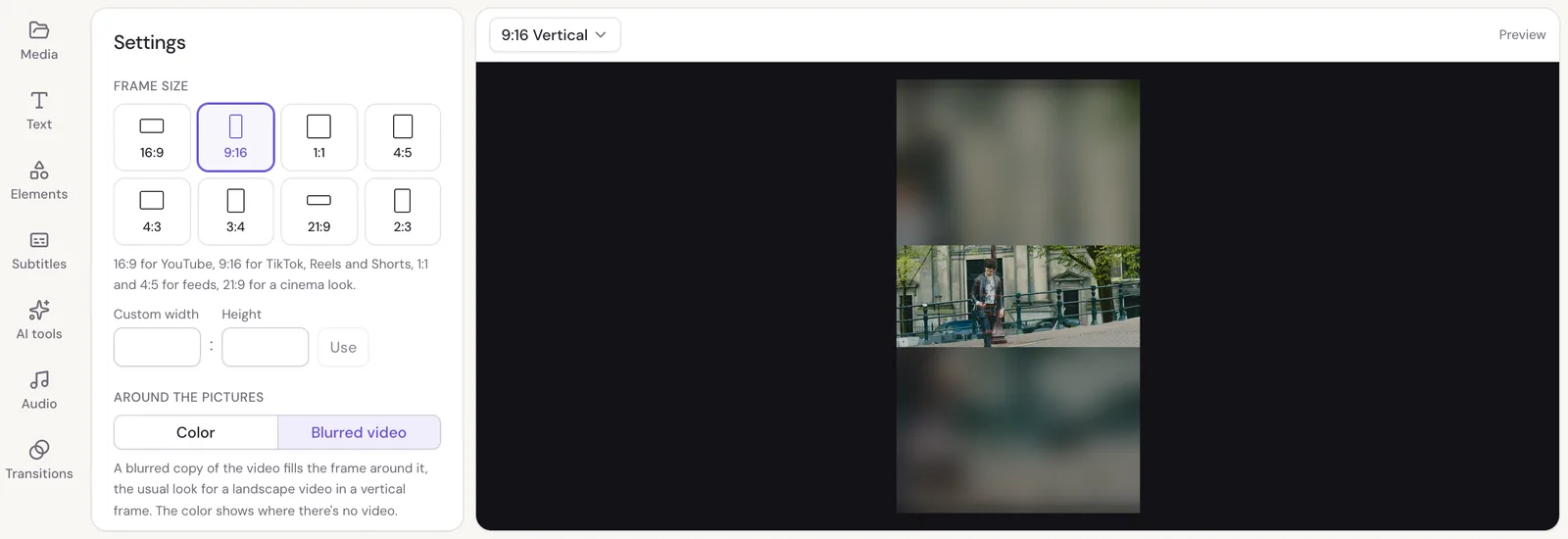
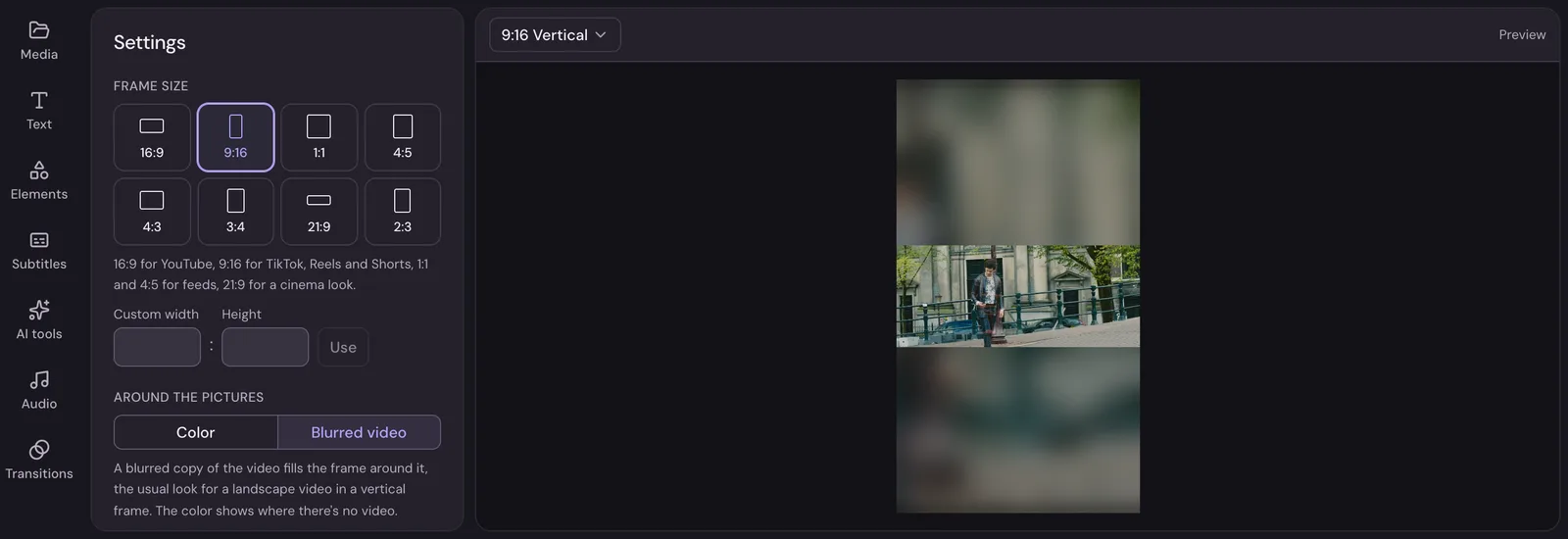
What fills the space around your video
When a clip's shape differs from the frame's, such as a landscape video in a vertical frame, there's space around it. In Settings, under Around the pictures:
- Color fills it with the Background color.
- Blurred video fills it with a blurred copy of the video, the usual look for a landscape video in a vertical frame.
To fill the frame with the video instead and cut off the sides, select the clip and choose the Fill layout. See Put a video or photo on top.
The background color
Background in Settings is the color wherever there's no picture: around a clip, in a gap between clips, and behind text on an empty part of the timeline.
Export size
The frame's shape and the resolution you pick when you export decide the video's size in pixels. A 9:16 video at 1080p comes out 1080 pixels wide and 1920 tall. See Export your video.