Add music and a voiceover
Add music, record a voiceover, set volume and fades, take a video's sound off, and lower music under speech.
Music, sound effects and voiceovers sit in the sound band under the timeline's rows. A video clip's own sound stays with the clip.
Add music or sound
Open Audio in the menu on the left and click Add music or a voiceover, or drop a sound file on the editor. MP3, WAV, M4A, AAC, FLAC, OGG and more work. The sound goes in at the playhead, or after the sound that's already there.
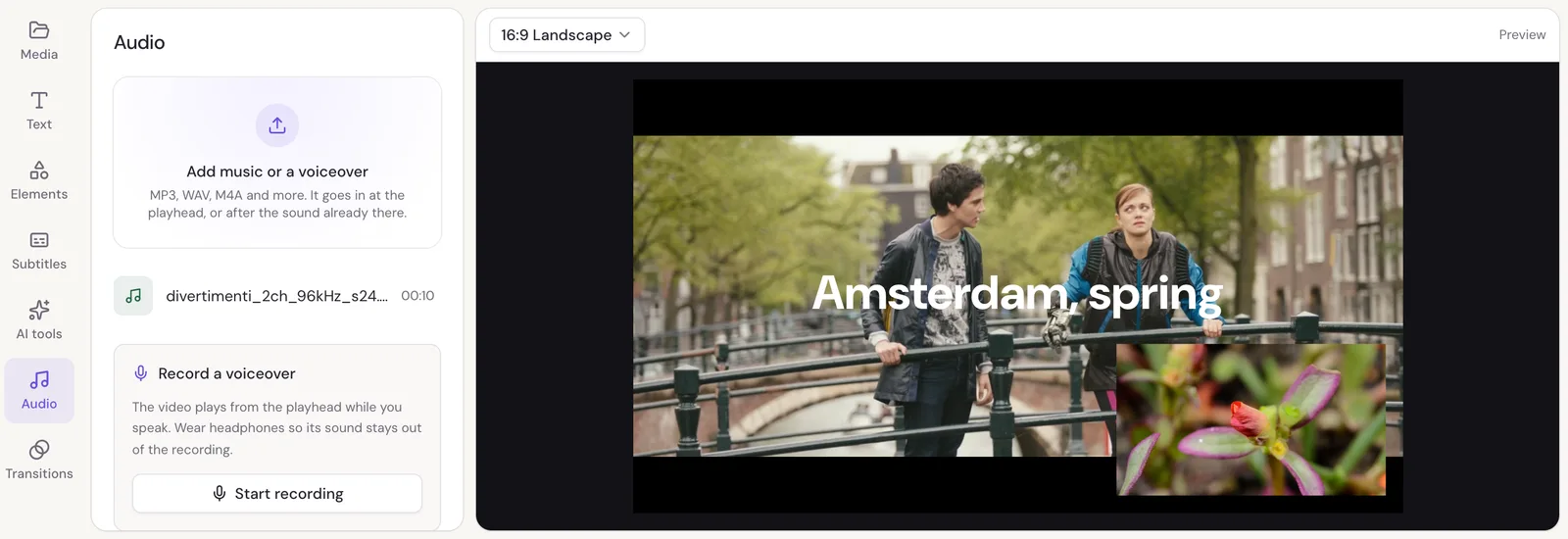
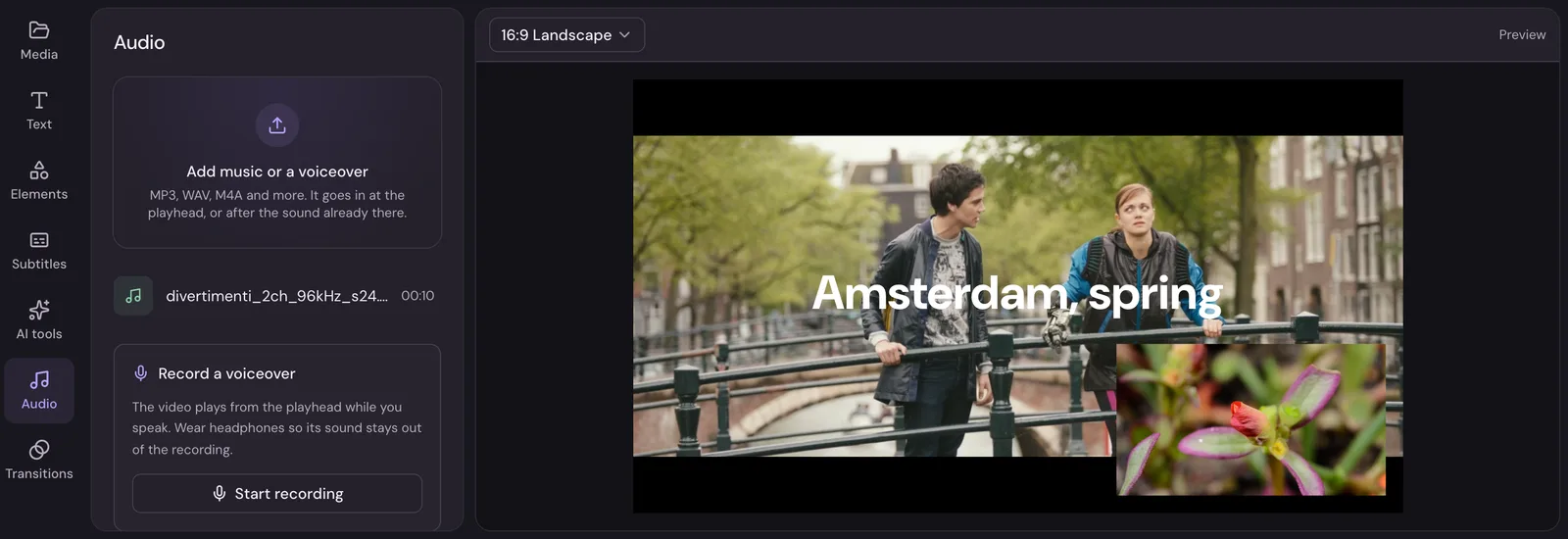
The files you've added are listed in the Audio panel. Click one to add it again at the playhead. Sounds can be moved, trimmed, split and copied on the timeline like anything else; see Edit on the timeline.
Record a voiceover
At the bottom of the Audio panel, under the files:
- Move the playhead to where you want to start talking.
- Click Start recording. The first time, your browser asks to use the microphone.
- Your video plays from the playhead while you speak, so you can talk over what's on screen.
- Click Stop recording.
The recording is added as a sound starting where you began, named Voiceover 1, Voiceover 2 and so on. Wear headphones, so the sound of your video stays out of the recording.
Volume and fades
Click a sound on the timeline to see its settings.
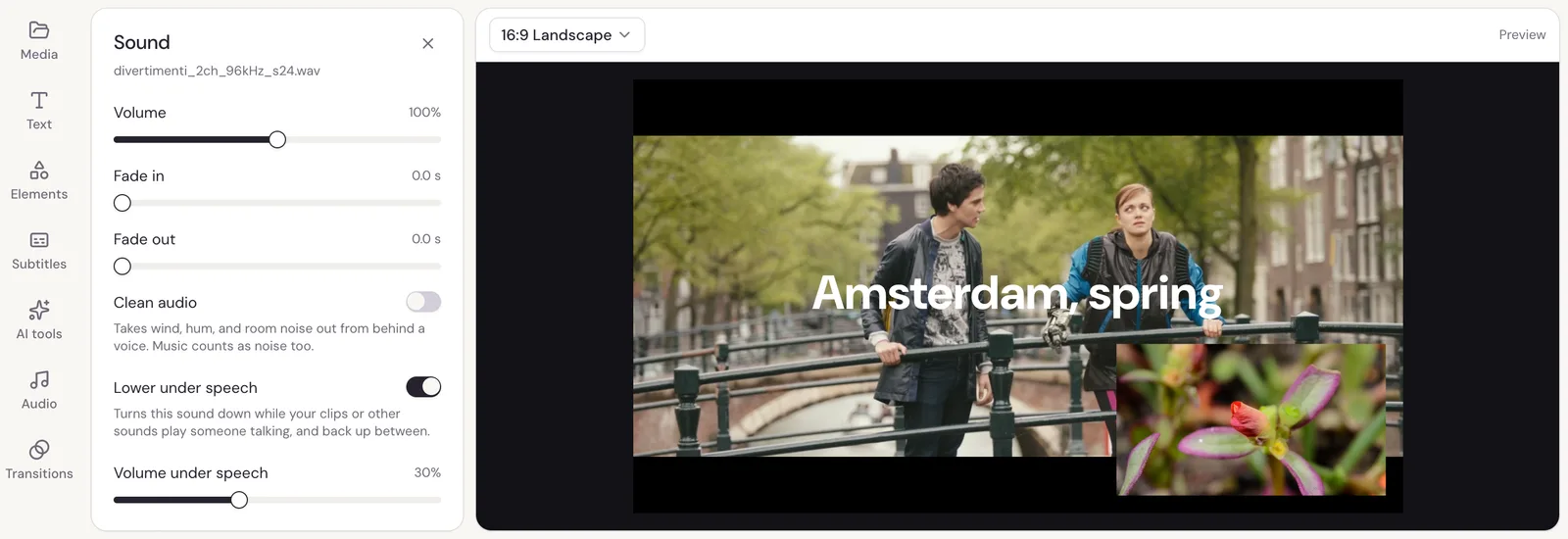
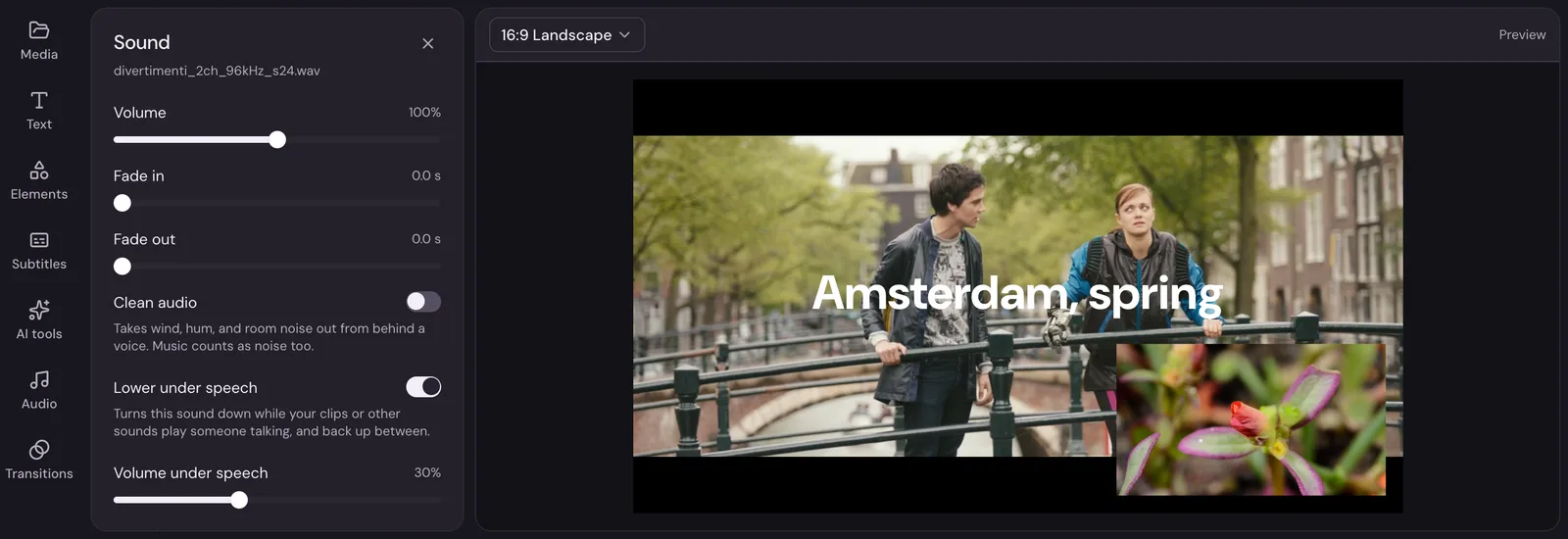
- Volume goes from 0% to 200%.
- Fade in and Fade out bring the sound in and out gently, for up to five seconds each.
- Speed plays it faster or slower, from 0.25× to 4×, keeping its pitch.
A video clip has the same volume and fades in the Sound tab of its settings.
Lower music under speech
Turn on Lower under speech on your music. Studio turns it down while someone is talking in your clips or other sounds, and back up between. Volume under speech sets how quiet it gets.
Take a video's sound off
To move or trim a video's sound apart from its picture, select the clip, open its Sound tab, and click Detach sound. The sound becomes a clip of its own in the sound band. To silence a clip's sound instead, set its volume to 0%, or mute its whole row with the speaker button on the row's left.
Clean up noisy sound
Clean audio takes wind, hum and room noise out from behind a voice. Turn it on in a sound's settings, or for a video clip in the AI tools. See Clean up noisy sound.
Export just the sound
To make an MP3 of your video's sound, choose Sound when you export. See Export your video.