Find your way around
What each part of the editor is for: the menu down the side, the panel, the preview, the timeline and the header.
Studio's editor has five parts. Everything you can do starts in one of them.
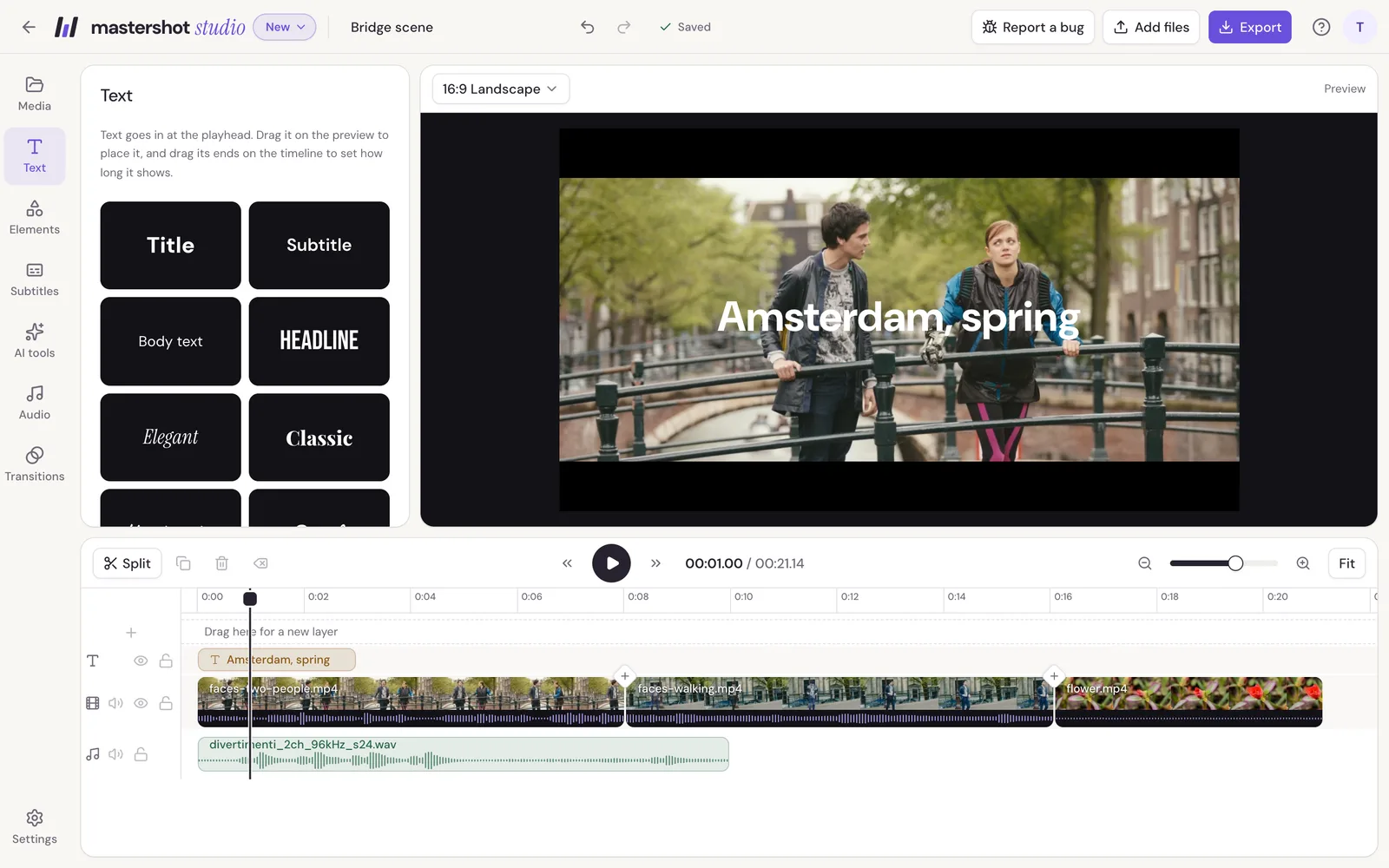
The header
Across the top, from left to right:
- Back to projects (the arrow) goes to your list of projects.
- The project's name. Click it to rename the project.
- Undo and Redo.
- Saved, Saving or a warning, which says whether your latest edits are in your account. See Projects, saving and your files.
- Report a bug opens a short form to tell us when something doesn't work.
- Add files brings in more videos, photos or sound.
- Export makes the finished video.
- Help has a short getting-started guide, the keyboard shortcuts, and a way to report a problem or send an idea.
- Your account, for account settings and signing out.
The menu down the side
Each button opens a panel next to it:
| Button | What's in the panel |
|---|---|
| Media | Every file in the project. Click one to add it to the end, drag it onto the timeline, or use Overlay to put it in a corner on top of your video. |
| Text | Text styles, from titles to lower thirds. |
| Elements | Shapes, arrows, a progress bar and emoji. |
| Subtitles | Automatic subtitles, or lines you type or import. |
| AI tools | Magic Cut, Remove background, Blur faces and Clean audio. |
| Audio | Music and sound files, and the voiceover recorder. |
| Transitions | Every cut between clips, and the transition on each. |
| Settings | The frame size, what fills the frame around your video, and the background color. |
The panel and the inspector
Click anything on the timeline or the preview and the panel shows its settings instead. We call that the inspector. A video clip's settings are split into tabs: Edit, Color, Sound (when the clip has sound) and Animate. Under them are Split, Duplicate and Delete.
Close the inspector with the × in its corner or by pressing Esc, and the panel you had open comes back.
The preview
The preview shows your video at the playhead. You can work on it directly:
- Drag a clip, text or shape to move it.
- Drag the handles on its corners to resize it, and the round handle above it to turn it.
- Guides show when something lines up with the middle or the edges of the frame.
The size menu above the preview changes the frame's shape.
The timeline
The timeline shows everything in your video over time. The playhead is the line that marks the moment the preview shows. Click the ruler to move it, or drag along the ruler to scrub.
The buttons above the timeline:
- Split, Duplicate, Delete and Delete and close the gap work on what's selected.
- Back 5 seconds, Play and Forward 5 seconds.
- Zoom out, Zoom in and Fit, which shows the whole video.
There's more about rows, trimming and selecting in Edit on the timeline.