Edit on the timeline
Trim, split, move, copy and delete clips, close gaps, select several things at once, and work with rows.
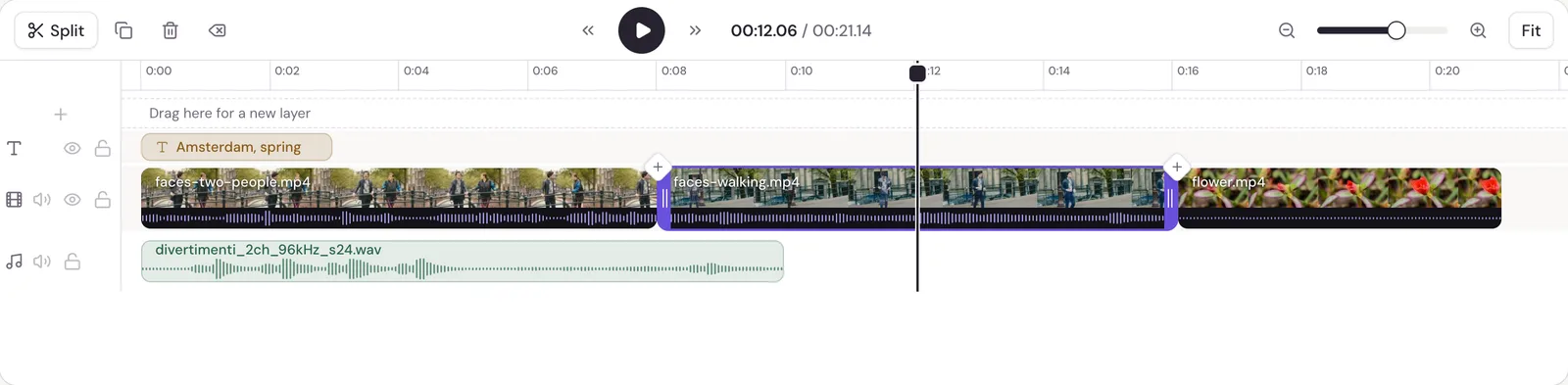
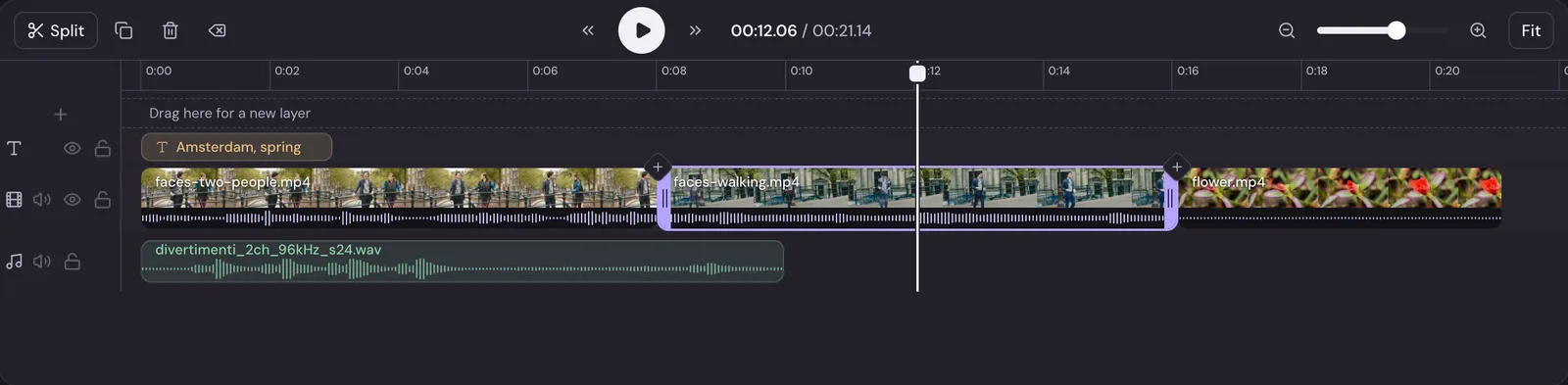
The timeline is where you put your video in order. Time runs from left to right, and things higher up show in front of things lower down.
Rows
Video clips, photos, text and shapes sit on rows. Every row works the same way. There's no main track. A row higher up shows in front of the rows below it, so a title on the row above your video shows on top of it.
- To start a new row, drag something to the empty space above the top row. A clip dragged onto a spot that's taken gets a new row just above.
- Music and voiceovers sit in the sound band under the rows.
- Each row has buttons on its left to mute its sound, hide it from the video, and lock it so nothing on it can be picked or moved. Sound rows can be muted and locked.
Add to the timeline
- Click a file in Media to add it to the end of your video.
- Drag a file from Media onto the timeline to put it exactly where you want it.
- Sound files you add go in at the playhead, or after the sound already there.
Move and trim
- Move something by dragging it, along its row or to another row.
- Trim by dragging either end of a clip. Studio shows handles on the ends of the clip that's selected, and of any clip under the pointer.
- Edges snap to other clips' edges and to the playhead as you drag, so cuts line up exactly.
When you trim the start of a clip that touches the one before it, the rest of that row moves back to close the gap when you let go. Only that row moves; nothing on the other rows changes.
Split
Put the playhead where you want the cut and press S, or click Split above the timeline. With something selected, Studio splits that. With nothing selected, it splits the clip under the playhead.
Delete and close gaps
Select something and press Delete (or Backspace). It leaves a gap.
- Shift + Delete, or Delete and close the gap above the timeline, deletes it and moves what comes after it on that row back to fill the space.
- A gap between clips gets a Close the gap button. Click it and what follows on that row moves back.
A gap shows as the background color in your video, so close the ones you didn't mean to leave.
Select several things
- Shift + click adds something to the selection, or takes it out.
- Drag across an empty part of the timeline to draw a box around what you want.
- Ctrl + A selects everything.
With several things selected, the panel shows how many you have, with Delete and Delete and close gaps.
Copy, paste and duplicate
- Ctrl + C copies what's selected, and Ctrl + X cuts it.
- Ctrl + V pastes at the playhead. What you copied stays while Studio is open, so you can paste it into another project too.
- Ctrl + D, or Duplicate, makes a copy just after the original, on the same row if there's room.
Subtitle lines can't be copied, since they belong to the speech they were made from.
Undo
Undo and Redo in the header take back your last 200 changes since you opened the project. Ctrl + Z undoes and Ctrl + Shift + Z redoes. On a Mac, use ⌘ instead of Ctrl.
Move around
- Zoom in and Zoom out above the timeline change how much of the video it shows. Fit shows all of it.
- ← and → move the playhead one frame, and with Shift, one second.
- Home and End go to the start and the end.
See Keyboard shortcuts for the full list.