Make your first video
Sign in, add your footage, cut it down, add words and music, and export.
Studio is a video editor that runs in your browser on a computer. It's free, there's no watermark, and your video files are never uploaded: your browser reads them and makes the finished video on your computer.
Open Studio and sign in
Go to mastershot.app/studio in Chrome, Edge, Firefox or Safari on a computer. Studio asks you to sign in so it can save your projects to your account. Use your Google account, or make an account with your email and a password. With a password, Studio emails you a link to confirm the address first.
After you sign in you'll see Your projects. Click New project.
Add your footage
A new project opens with an empty preview. Click Add files, or drop videos, photos and sound files anywhere on the editor.
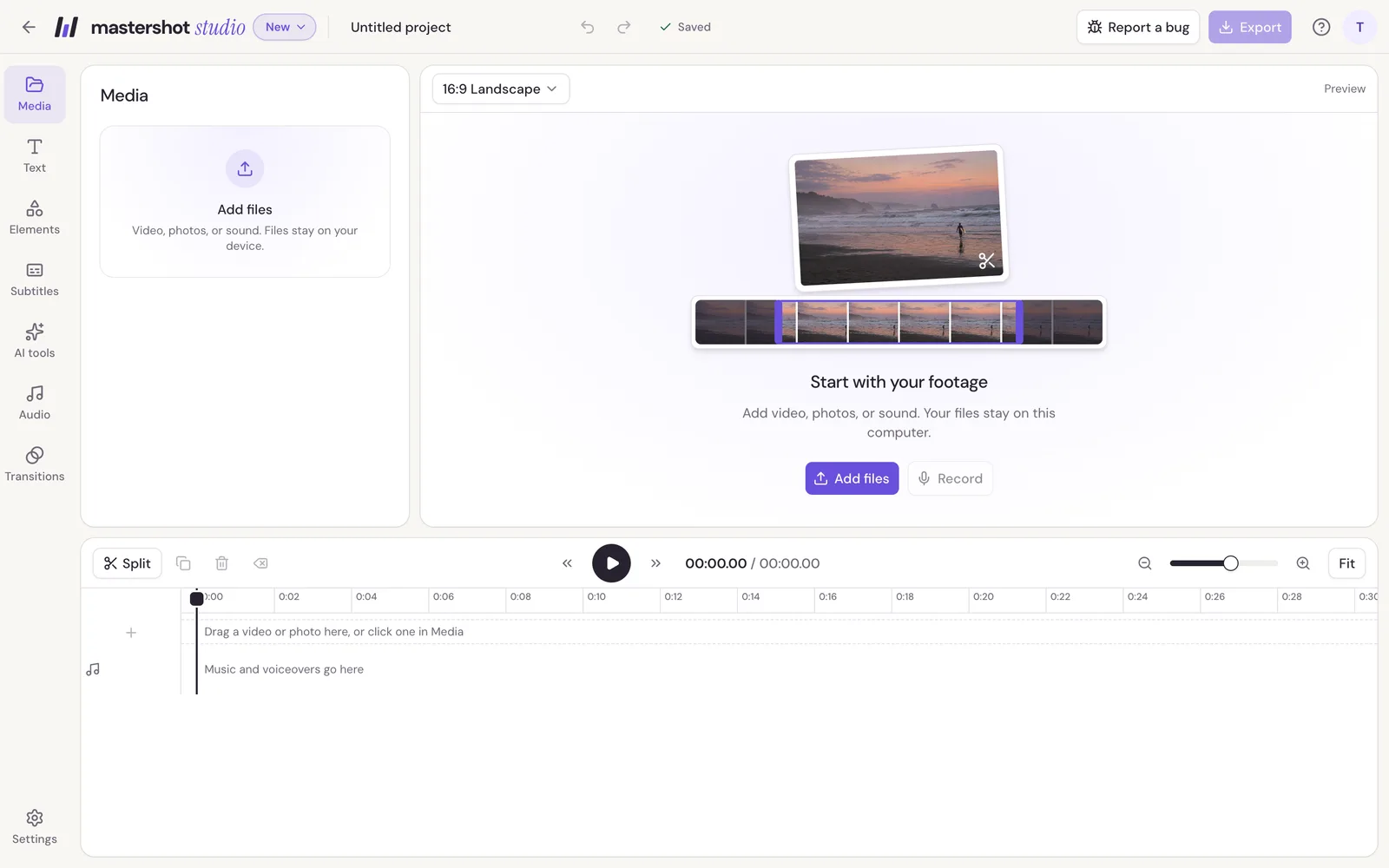
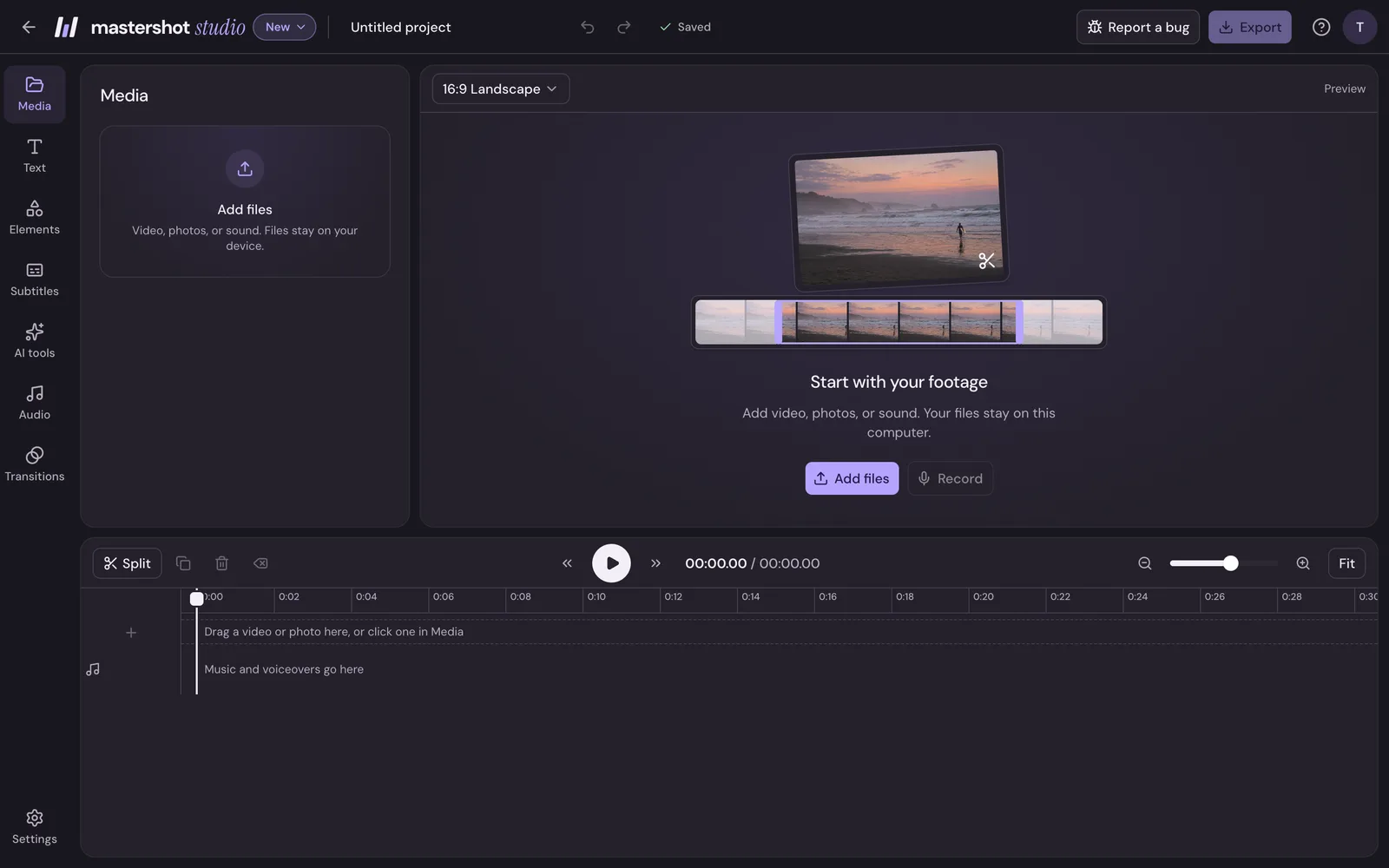
Videos and photos line up on the timeline in the order you add them. Sound files go under them, as music. Studio keeps a copy of each file in your browser, so the project opens again with its files next time you use this computer.
Cut it down
- Trim a clip by dragging either of its ends on the timeline. Clips that were touching stay together.
- Split a clip in two by putting the playhead where you want the cut and pressing S.
- Delete what you don't want: click it and press Delete. Shift + Delete also closes the gap it leaves.
Press Space to play and pause. If you make a mistake, Undo in the header (or Ctrl + Z) takes it back.
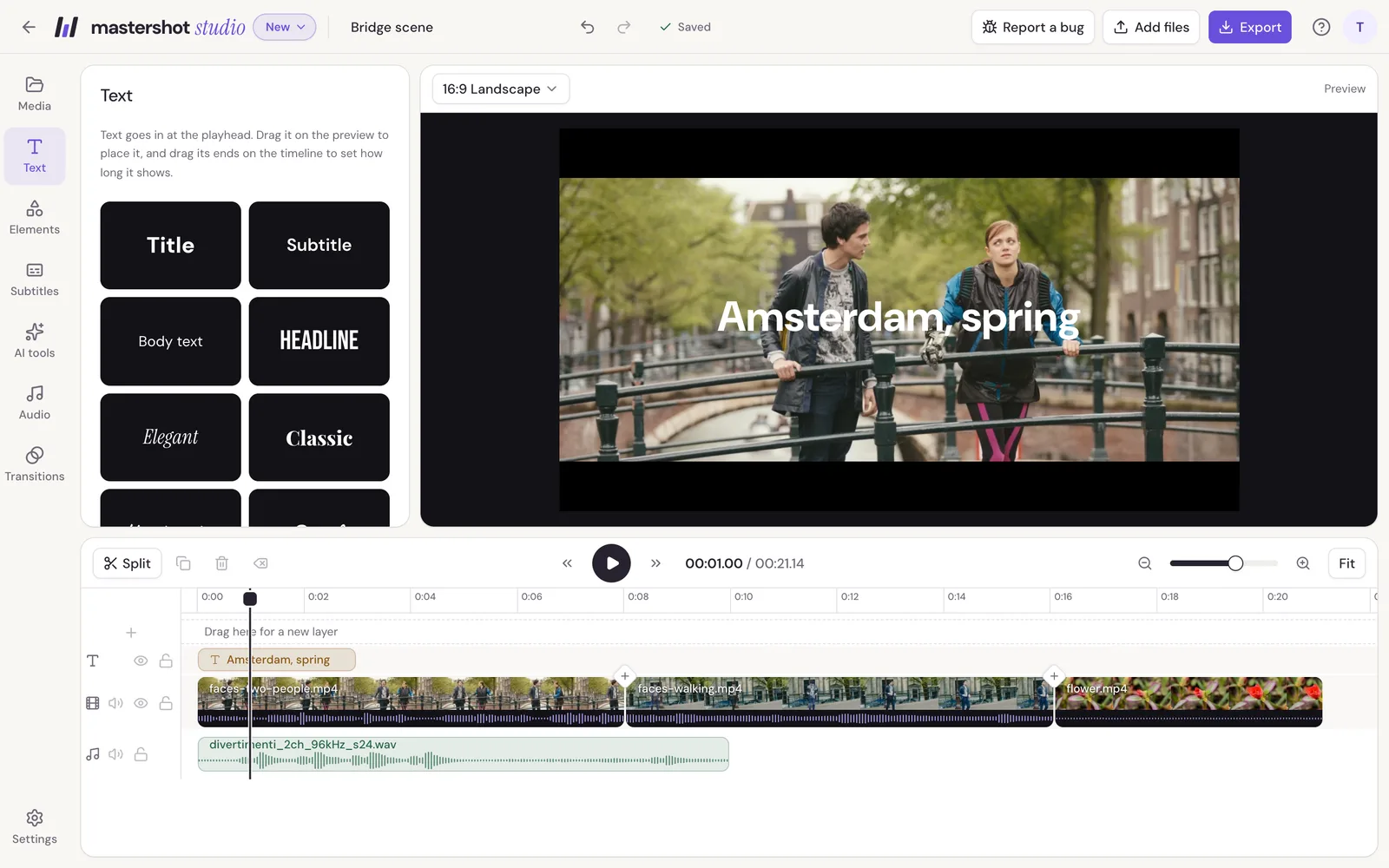
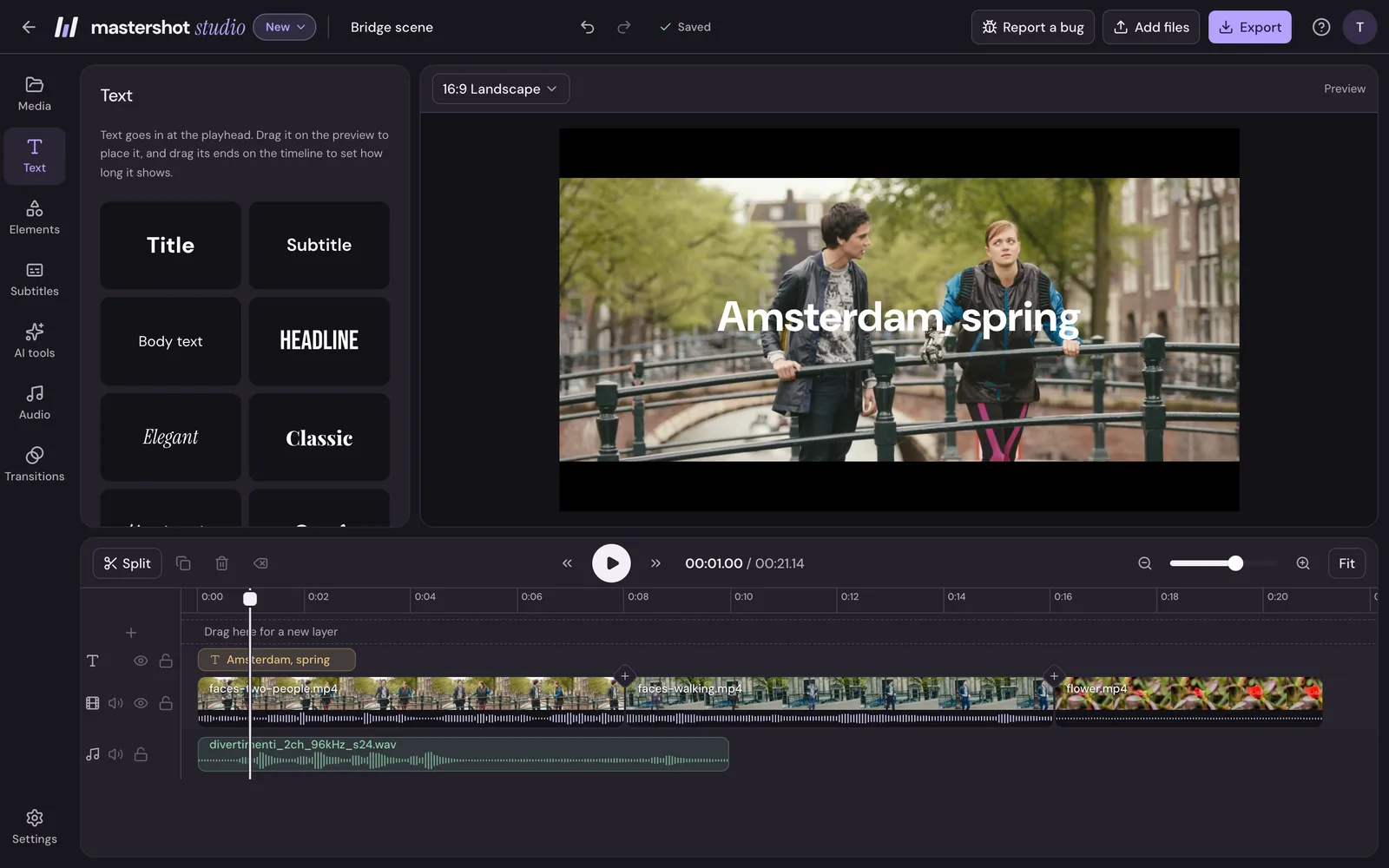
Edit on the timeline covers the rest: moving clips, rows, gaps and selecting several things.
Add words and music
- Open Text in the menu on the left and click a style. The text goes in at the playhead. Type your words in the panel, and drag the text on the preview to place it. See Add text, shapes and emoji.
- Open Audio to add music or record a voiceover. See Add music and a voiceover.
- Open Subtitles to have Studio write subtitles from the speech. See Add subtitles.
Smooth the cuts
Where one clip ends and the next starts, the timeline shows a small diamond. Click it and pick a transition, such as a crossfade. See Add transitions.
Pick the shape
The size menu above the preview switches between landscape (16:9) for YouTube, vertical (9:16) for TikTok, Reels and Shorts, square and more. See Change the frame size.
Export
Click Export in the top right, choose the resolution, and click Export video. Studio makes an MP4 on your computer, with no watermark, and offers it to download. See Export your video.
Your edits save to your account as you go, so you can close the tab and come back later. The header says Saved once they're in.