Take out pauses and “um”s
Magic Cut finds the long pauses and the “um”s and “uh”s in people talking, and cuts the ones you tick.
Magic Cut listens to people talking in your clips and finds the long pauses and the "um"s and "uh"s. You hear the result before anything is cut, untick what you want to keep, and cut the rest in one go. It runs on your computer, so your video isn't uploaded.
Find what to cut
-
Put a video or voiceover of someone talking on the timeline.
-
Open AI tools in the menu on the left and click Magic Cut.
-
Under Cut from, tick the files with speech. Music isn't cut: it moves along with the speech and ends when it does. Tick a sound file if it's someone talking.
-
Under Take out, choose what to look for:
-
Long pauses, and how much pause to leave:
Setting Shortens pauses longer than To Tight 0.3 s 0.1 s Natural 0.6 s 0.2 s Relaxed 1 s 0.4 s -
"Um"s and "uh"s. Filler words are found in English speech only.
-
-
Click Find what to cut.
The first time, Studio downloads its speech model, which your browser keeps for next time. Magic Cut can't start while Studio is listening for subtitles; it waits until that's done.
Check before you cut
Studio lists what it found and how much time cutting it saves.
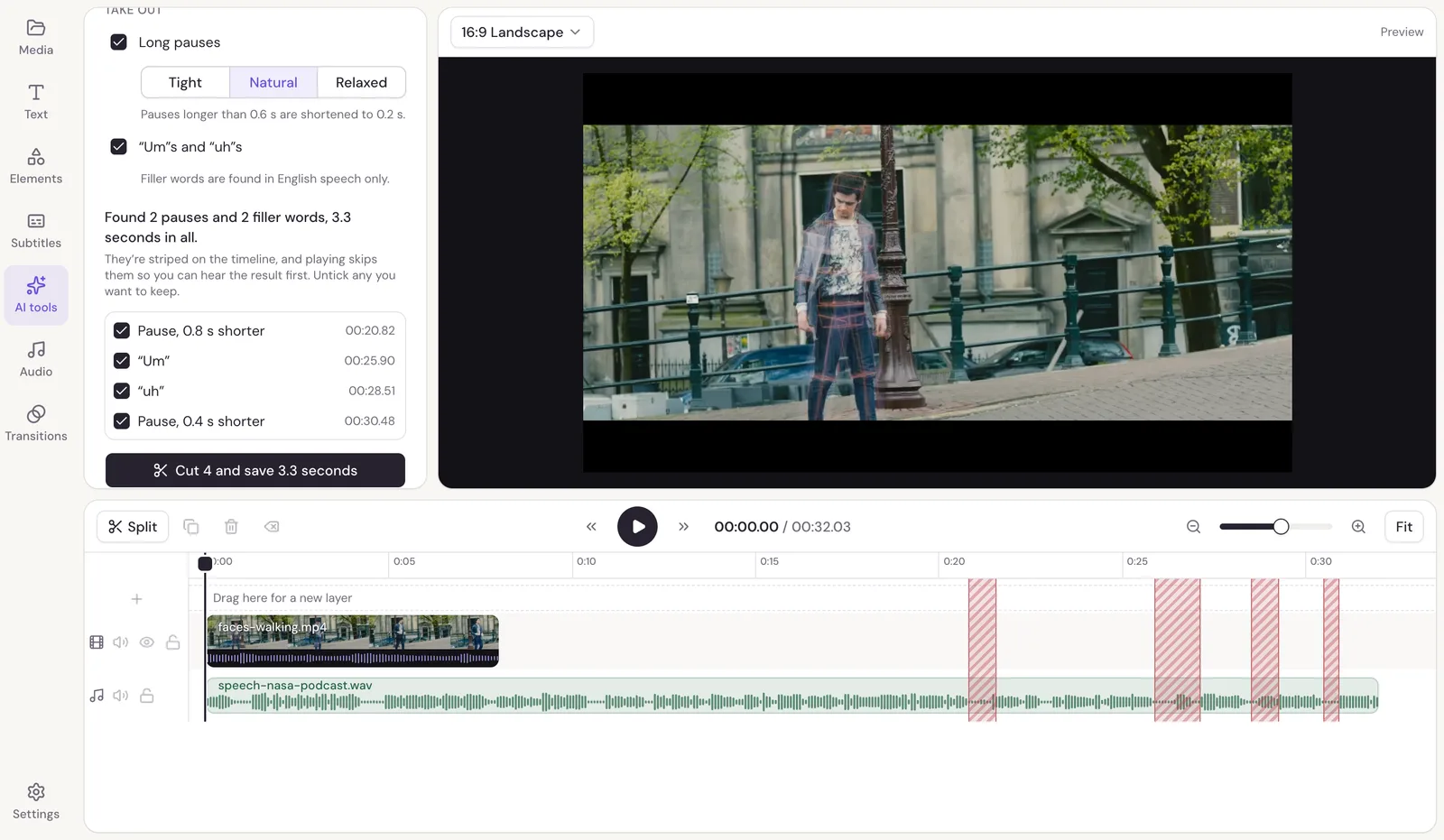
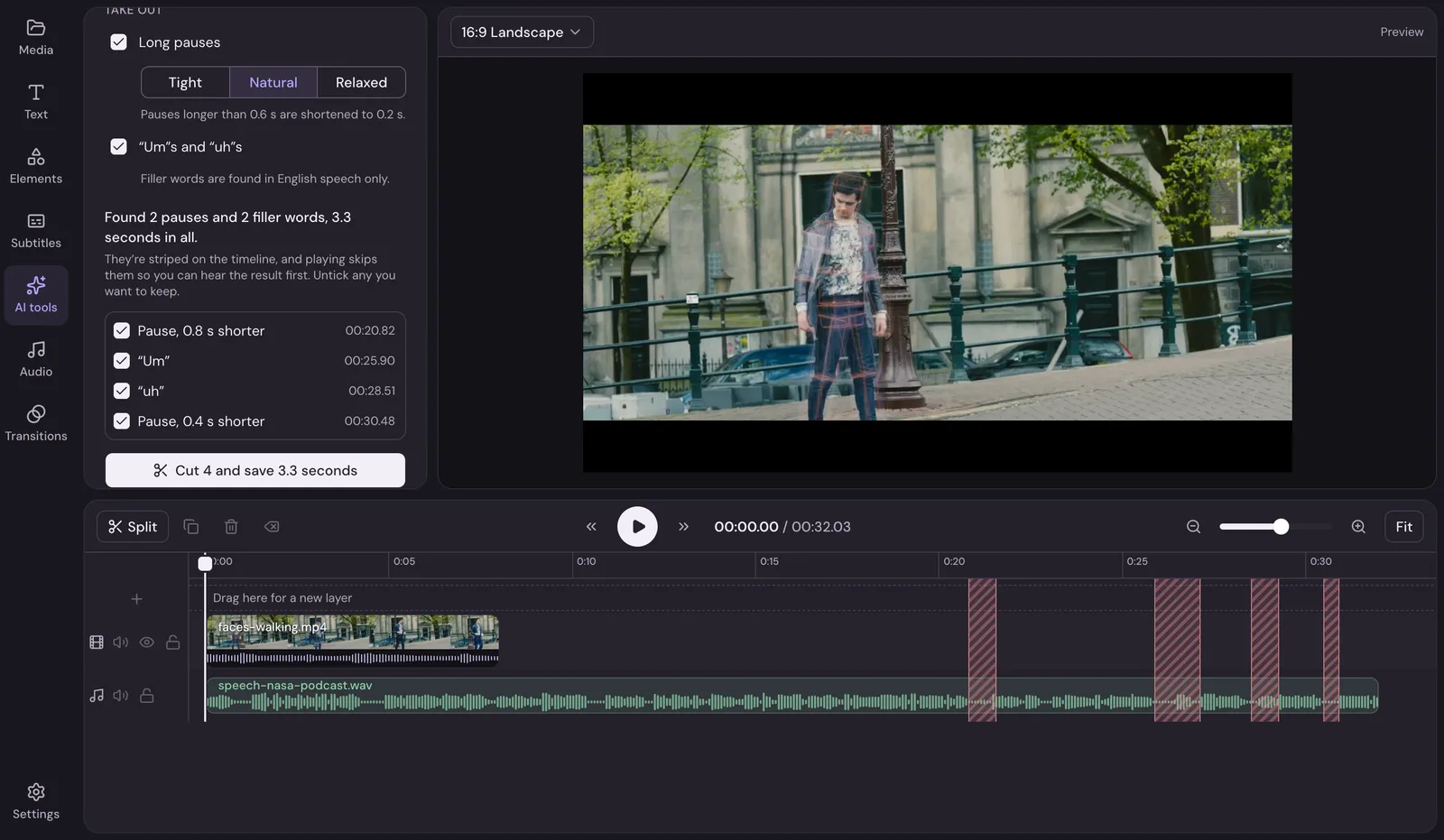
- Every cut is striped on the timeline.
- Playing skips the cuts, so you hear the result before anything changes.
- Click a cut in the list to move the playhead a second before it, then play to hear it.
- Untick any you want to keep.
When it sounds right, click Cut (it says how many and how much time it saves). Everything after each cut moves up to close the gap, and music and titles keep their place against the speech. Undo puts it all back.
Good to know
- Magic Cut only takes out an "um" or "uh" with quiet around it. One said straight into the next word stays, since cutting it would clip the word.
- It works best on one person talking or a conversation recorded cleanly. On a noisy recording, try Clean audio first.
- If nothing comes up, there were no pauses longer than your setting. Try Tight.